
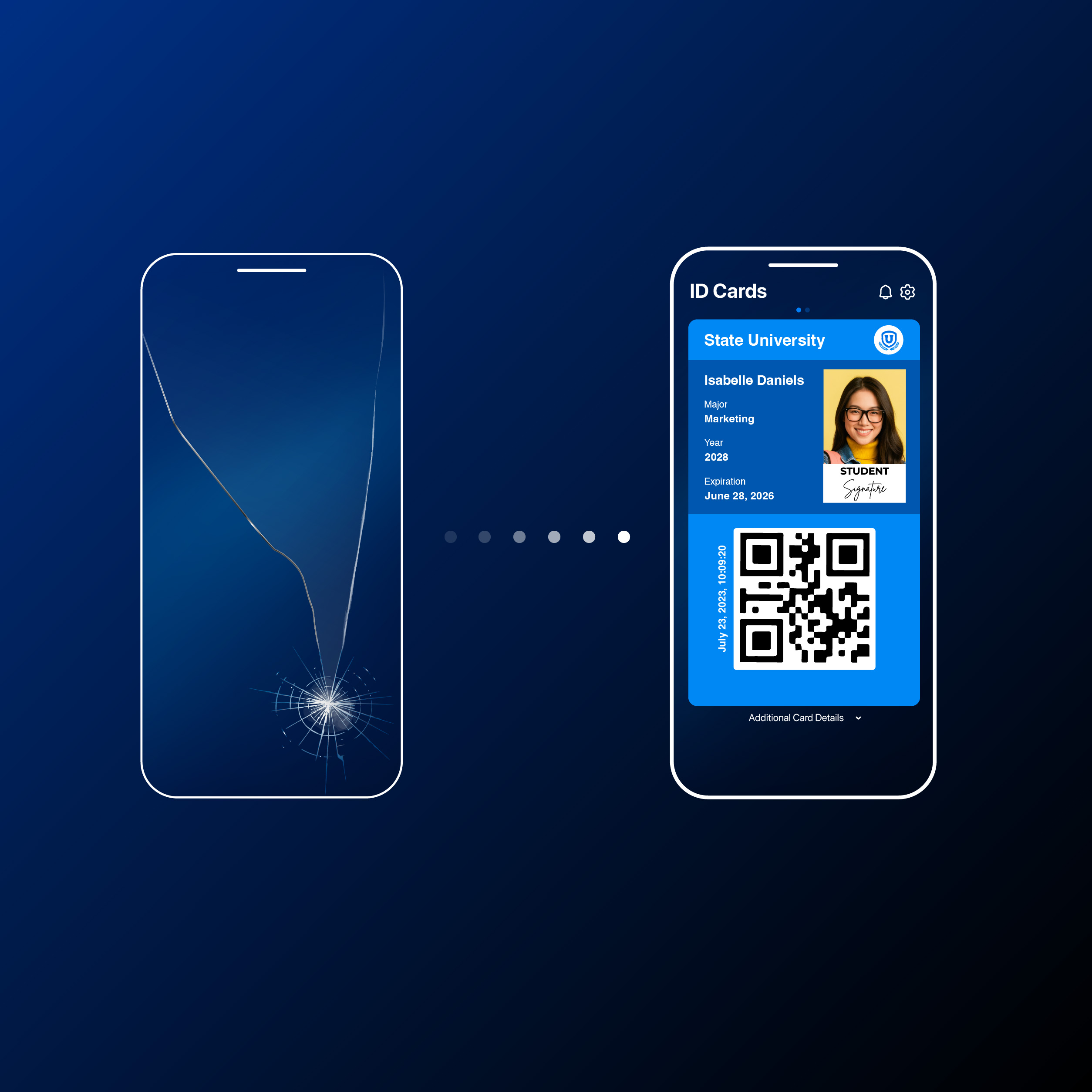
DIGITAL ID CARDS
Got a New Phone This Summer?
Here are Some ID123 Tips n’ Tricks to Move Your Digital ID.
2 min read

Ava Hanley • September 2, 2026
New phone, new everything — except your ID, which should be one of the easiest things to bring with you. If you upgraded over the summer, here’s the down low on how to get your ID over to your new device.
Installing a Digital ID Card
- Download the ID123 App from the App Store or Google Play.
- Log in with the exact email address your school or organization has on file.
- You do not have to register again, just log in!
- You’ll get a verification code sent to that email to confirm it’s really you.
- From there, how you finish setup depends on how your school or organization sends invitations.
Most of the time, the invitation is sent right inside the app, which walks you through confirming your identity and installing your card.



Once you submit your information, your ID appears in the app and is ready to use.
Removing a Digital ID Card
- This protects you as much as it protects your school or workplace.
- An old phone with your ID still active, is still a way in, in someone else’s hands.
- GOOD NEWS: you don’t need your own phone to ditch it, here’s how to remove a digital ID from an old phone.
Things to Remember
- A typo or attempting to login using a personal email is the most common reason installation stalls.
- If you don’t get an invitation, check with your card office; sometimes it just hasn’t been sent yet.
- If your old card is still active, you can remove it from within your account or by having your card office deactivate it.
Still stuck? Contact your school/organization’s directly and they can look up your account, resend an invitation, or walk you through it one-on-one.