
A media file is an additional image that can be attached to a digital ID card template beyond the standard identification photo. Media files allow administrators to display supplementary visual content on cardholders’ digital ID cards — such as organization logos, certification badges, or other custom images that can remain consistent across all cards in a template or vary per individual record. This article walks you through how to add a media file to your digital ID card template using the ID123 ID Management System (IDMS).
Step 1
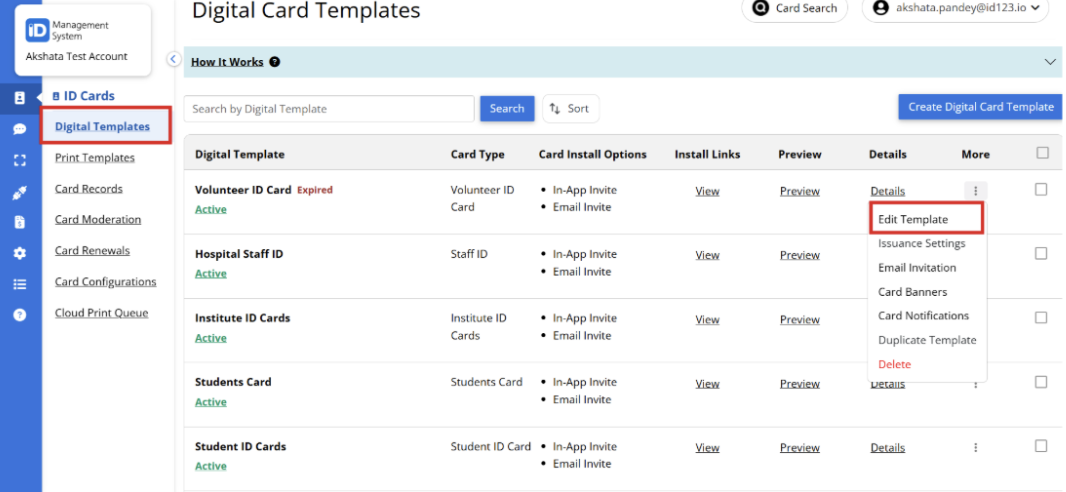
- Login to your ID123 ID Management System (IDMS) account.
- From the left-hand navigation menu click on ‘Digital Templates’.
- Under the ‘More’ column, click on three dots next to the template you want to edit.
- Select ‘Edit Template’
Step 2
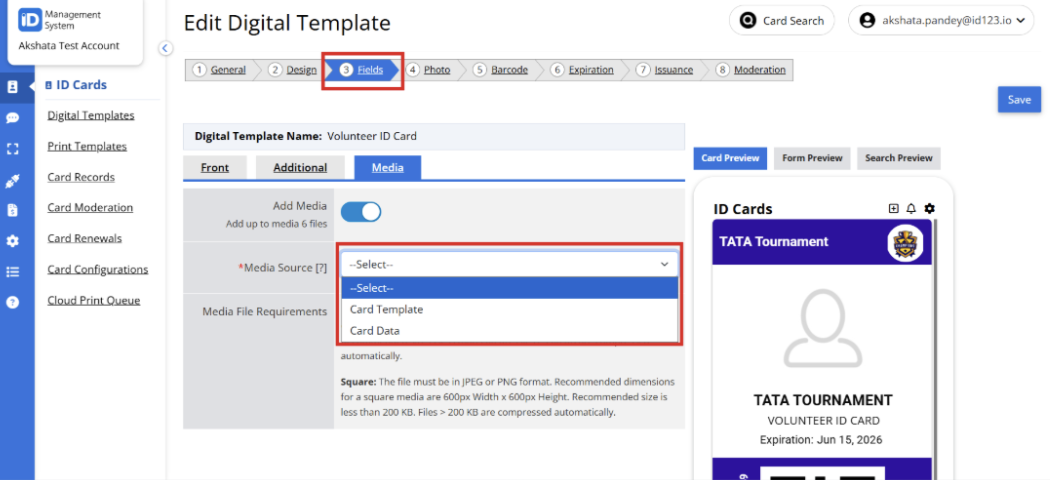
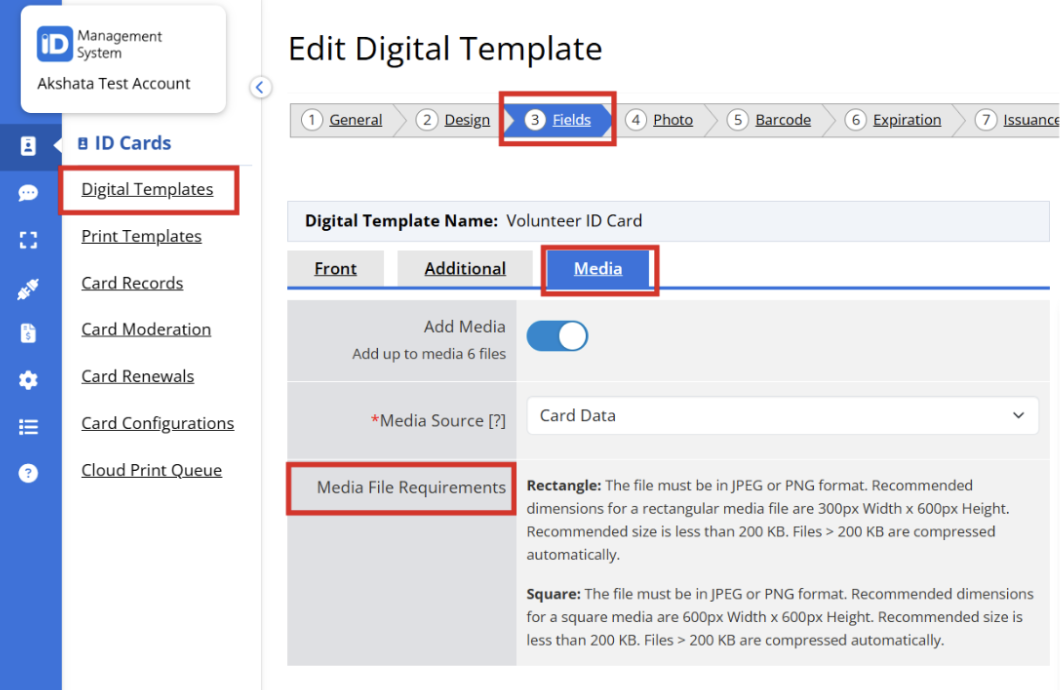
- Navigate to the ‘Fields’ tab.
- After designing the front and additional page of the ID card template you can see media.
- Select the ‘Media’ option.
Step 3
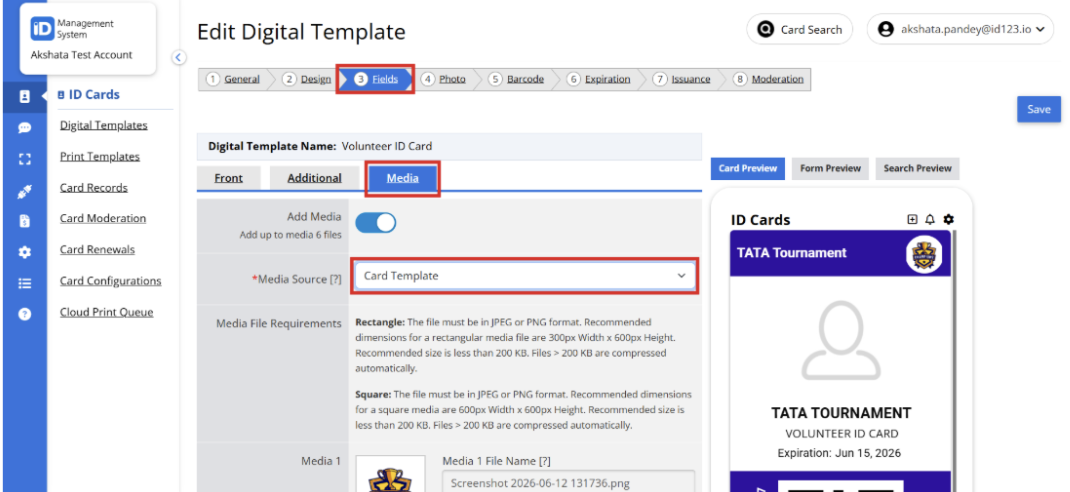
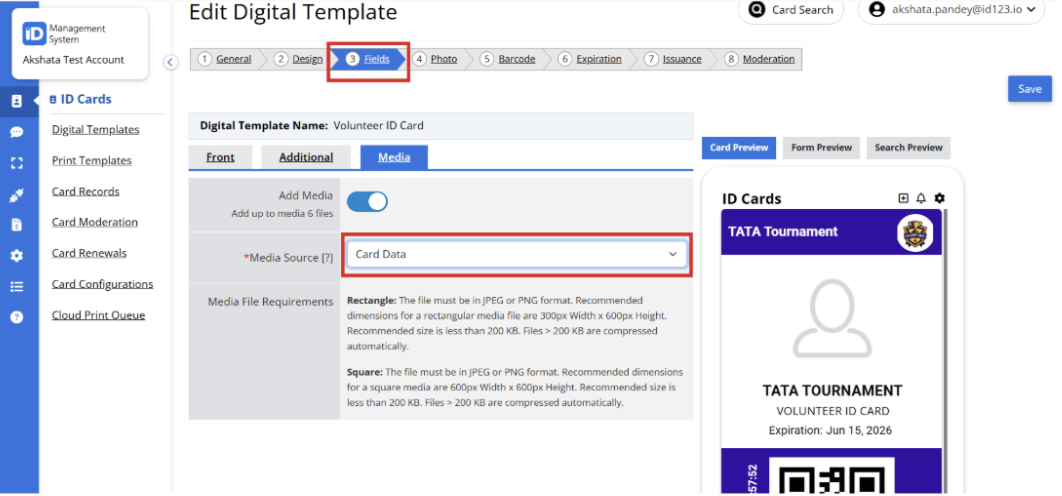
The Media Source determines how the media files are applied to the ID cards. For the same media files on all ID cards, select ‘Card Template’ and upload your files below. For unique media on specific ID cards, select ‘Card Data’ and upload your files individually from your Card Record Dashboard. Select one of the following options based on how you want the media files to be used:
Card Template
Use Card Template when the same media files should be displayed on all ID cards generated from the template. You can upload up to 6 media files.
- Media File Name – The name assigned to the uploaded media file.
- Alternative Text– A description used by device accessibility features (such as screen readers) to help users understand the media content.
- Display Text – The text displayed when the media file is opened or expanded within the digital ID card app.
OR
Media Expiration Date
You can enable Media Expiration Date to control how long the media remains visible on digital ID cards. Set an expiration date and define an expiration period. Once the media expires, you can choose to automatically hide it from the digital ID card.
Card Data:
Use Card Data when each cardholder requires unique media files. Instead of uploading media at the template level, media is uploaded and managed individually for each card record. After selecting the option save the details and follow steps 4 to add records in Media.
Step 4
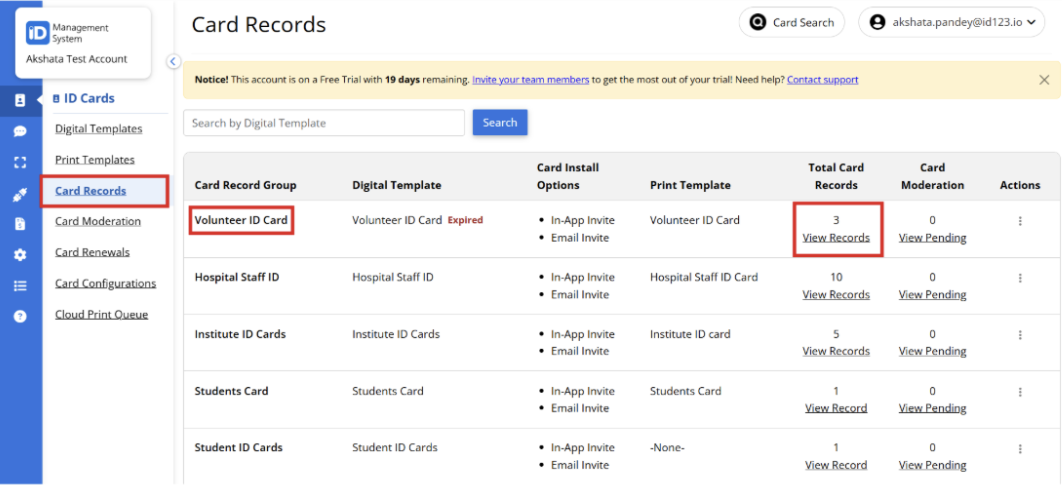
- Navigate to Card Records and open the ID card template to which you would like to add a media file.
- Click View Record to access the Card Record Dashboard.
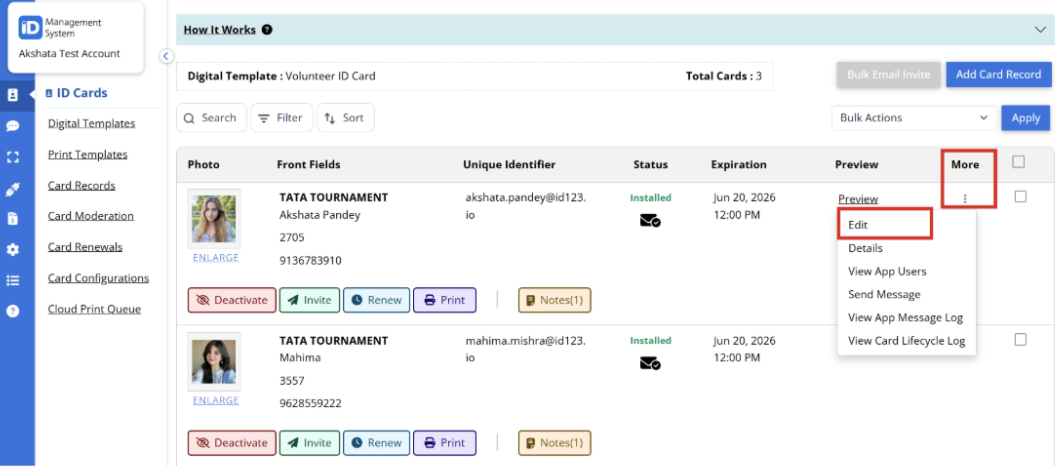
- Select the Unique ID Card. Click the three dots on the right-hand side and select Edit from the More menu.
- Here, you can upload images that will be displayed under the Additional Card Details section of the ID card.
Media File Requirements:
Before uploading a media file, ensure it meets the following requirements:
- Rectangle Media
Format: JPEG or PNG
Recommended Size: 300px × 600px, under 200 KB (files over 200 KB are automatically compressed)
- Square Media
Format: JPEG or PNG
Recommended Size: 600px × 600px, under 200 KB (files over 200 KB are automatically compressed)
Need Help?
If you have any questions or need help with email notification settings in IDMS, feel free to contact our support team.