
Google LDAP Overview
This article explains how to configure a Google Secure LDAP connection in the ID123 ID Management System (IDMS) to securely sync user and group data from Google Workspace. Google Secure LDAP uses LDAPS with mutual TLS (mTLS), meaning a private key and client certificate are required.
Before configuring the Google LDAP connection in IDMS, please ensure you have the following:
- A Google Workspace account with admin access
- Google Secure LDAP is enabled within your Google Workspace.
- A private key certificate available in
.keyor.pemformat. - A client certificate available in
.crtor.pemformat. - Network access from IDMS to Google Secure LDAP endpoints.
- Outbound TCP port 636 must be allowed.
Step 1: Access the Integrations Menu
- Log in to your IDMS administrator account at app.id123.io.
- From the left-hand navigation menu, click on ‘Integrations’.
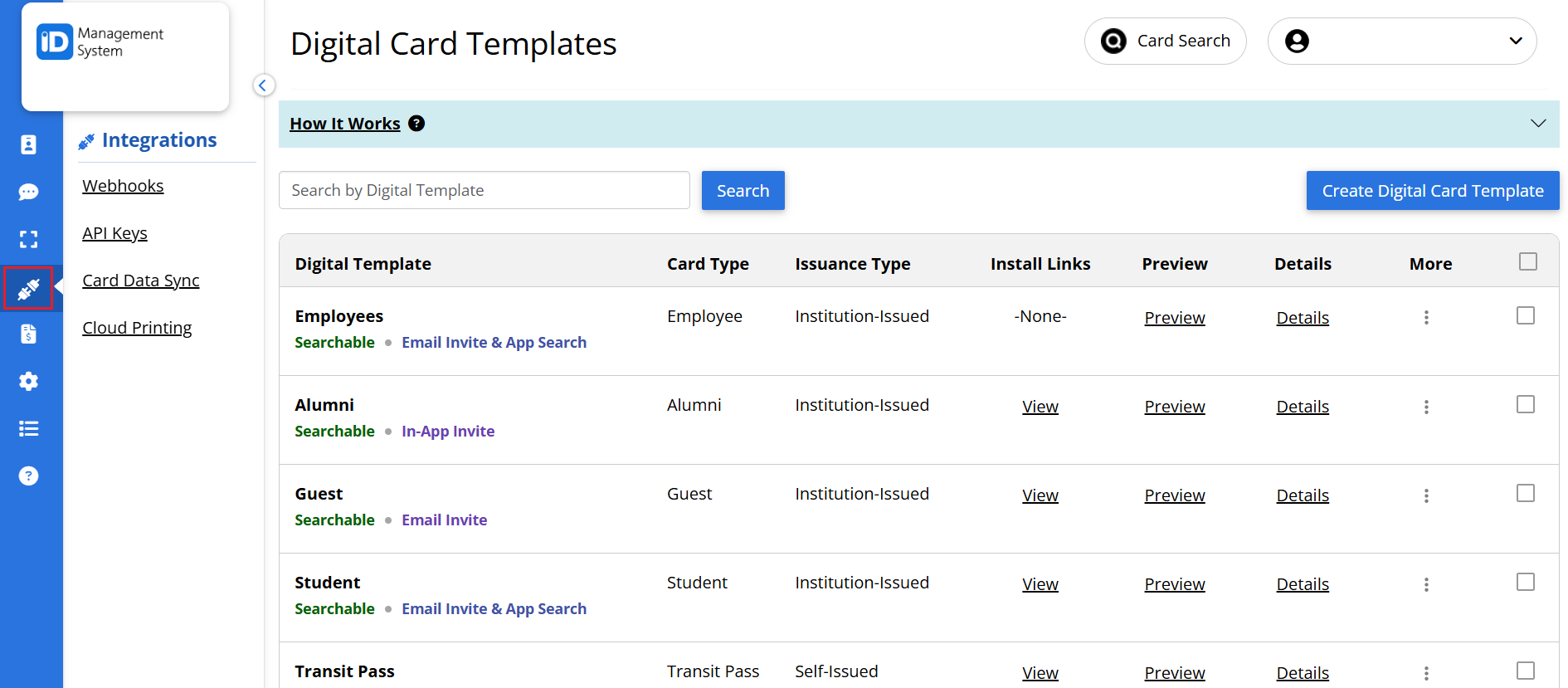
Step 2: Go to ‘Card Data Sync’
If this is your first time setting up a sync integration, click on ‘Card Data Sync’ under the Integrations menu.
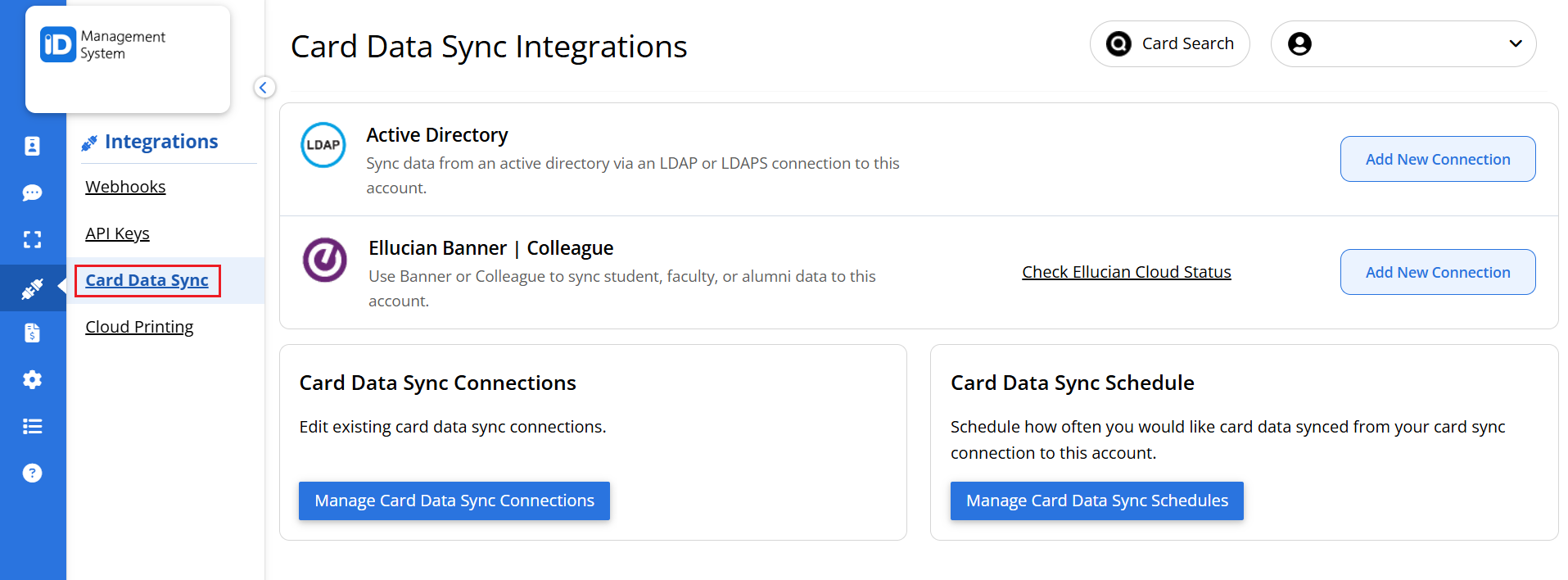
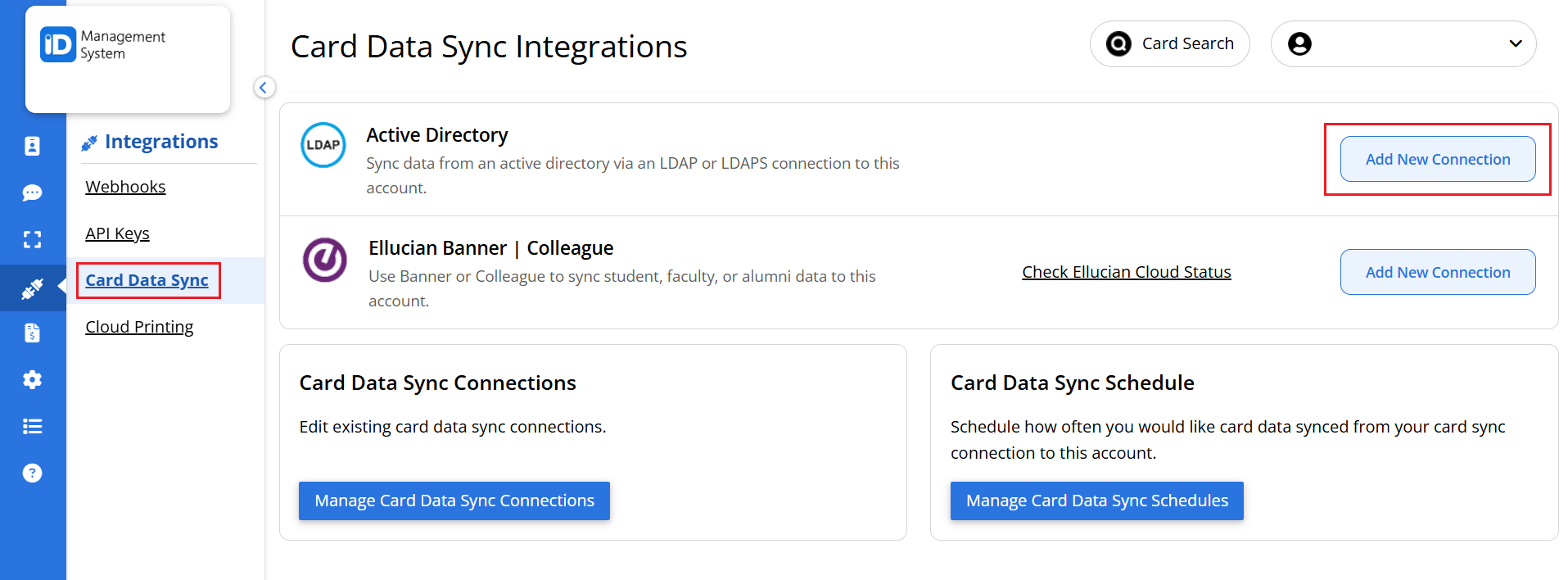
Step 3: Add a New Connection
On the Sync Connections page, click the “Add New Connection” button located in the top right corner.
Step 4: Enter a Connection Name
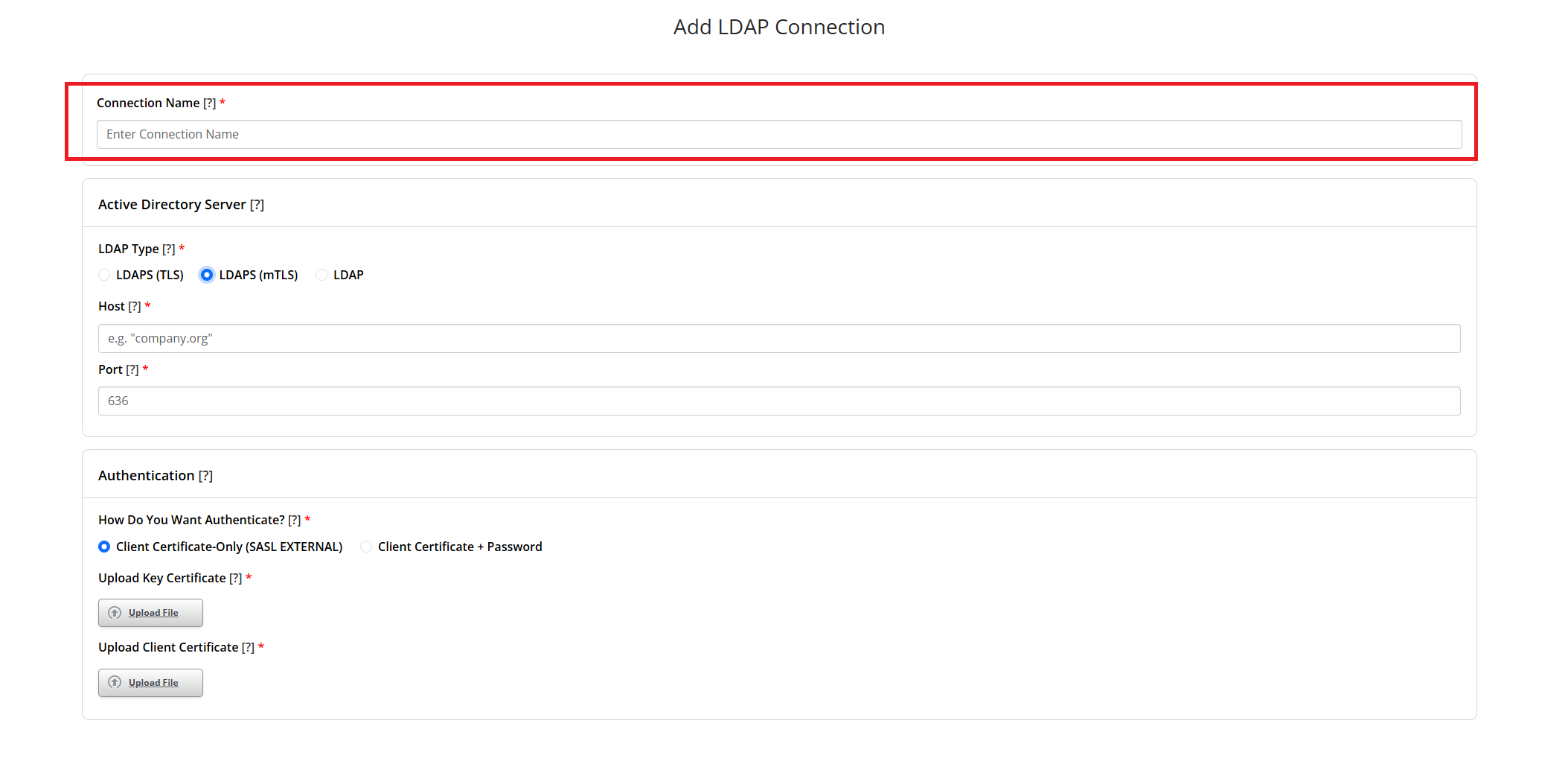
Enter an internal connection name for your Google LDAP connection.
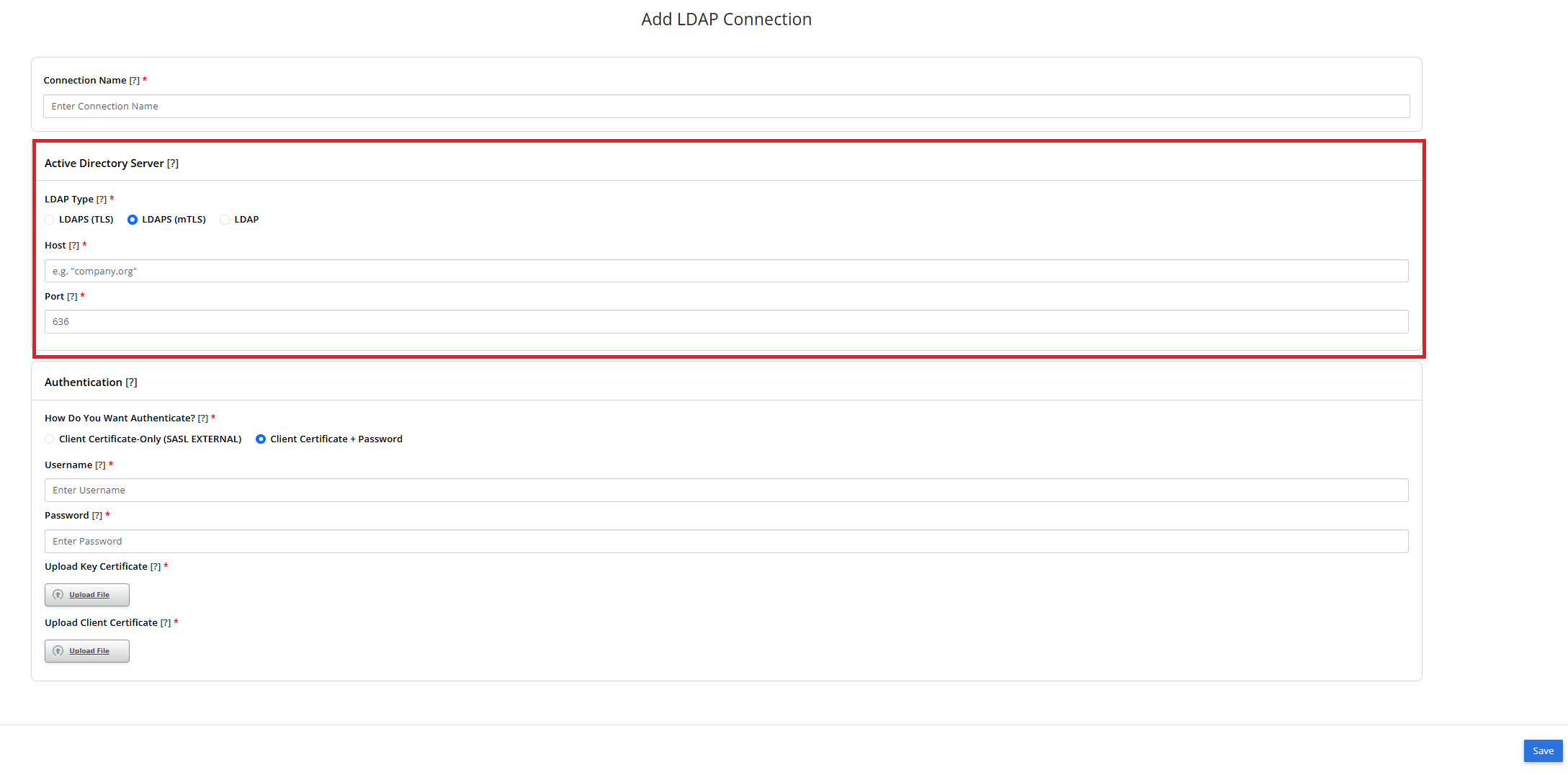
Step 5: Select LDAP Type
- Select ‘LDAP (mTLS)’ as your LDAP type. Please note that Google Secure LDAP uses mTLS only.
- Then enter your IP address or fully qualified domain name for your Active Directory server as the ‘Host’.
- And lastly, enter port “636” as your port number. Google Secure LDAP can only utilize TCP port 636.
Step 6: Select how to Authenticate
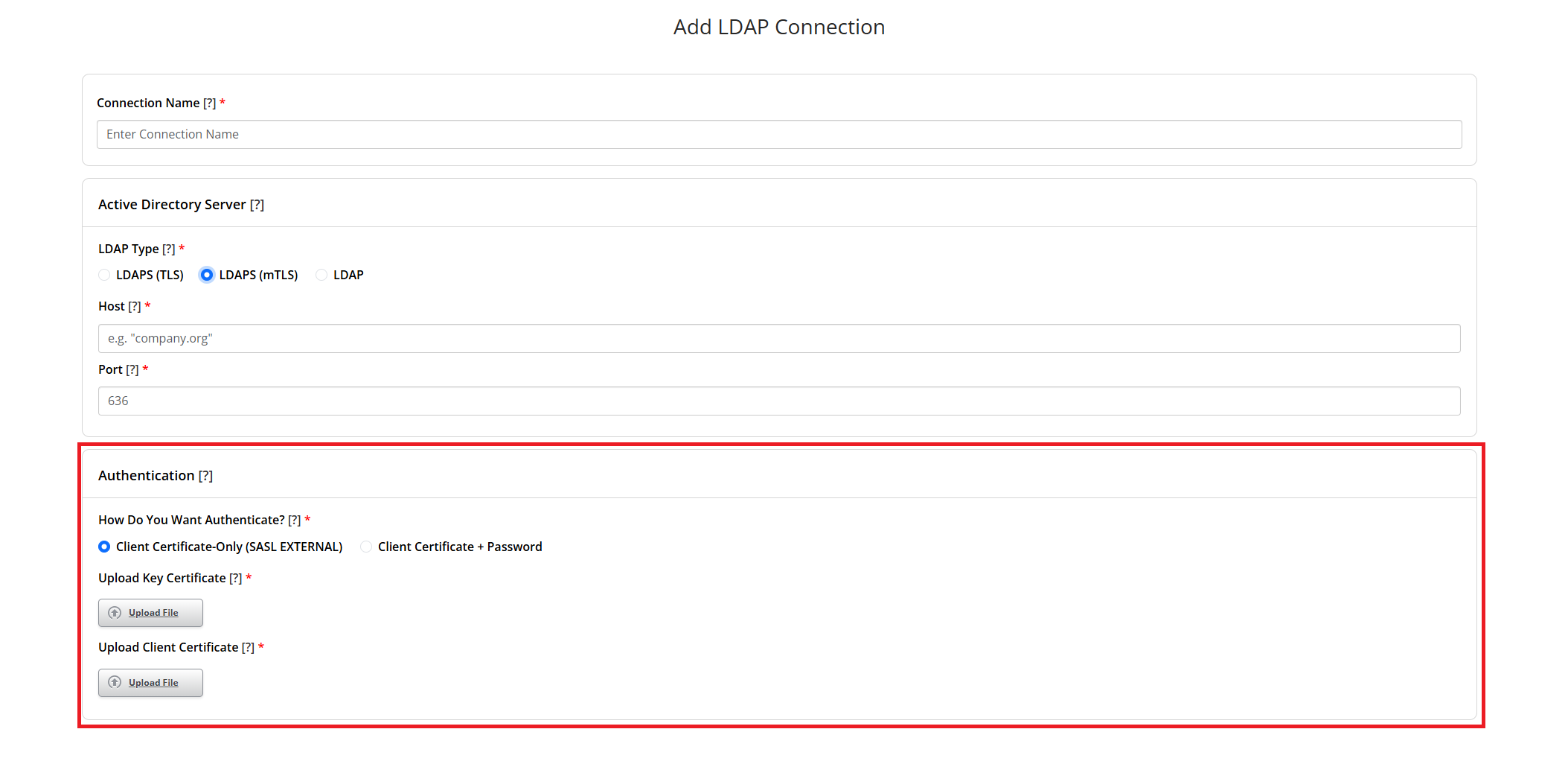
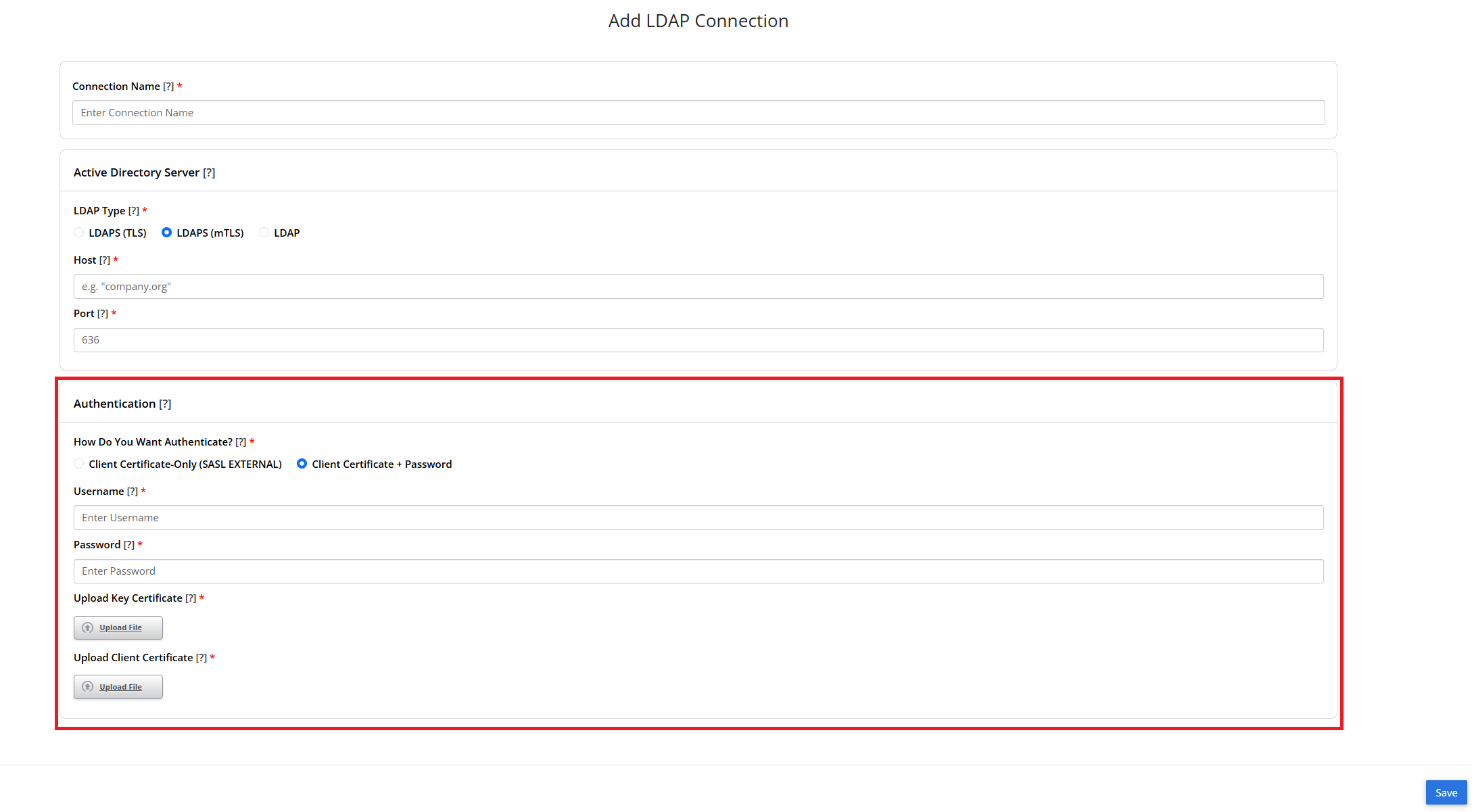
Choose the authentication method for your Active Directory.
- If you select “Client Certificate-Only (SASL +EXTERNAL)”, then you will be required to authenticate by uploading your Key Certificate and Client Certificate rather than your service account username and password.
- If you select “Client Certificate + Password”, then you will be required to authenticate using a combination of your service account username and password and your Key and Client Certificates. Please note that when entering the service account username, the format depends on your Active Directory. For example, “user@domain.com” or “DOMAIN\user”. If you are not sure how to format your username, check with your Active Directory provider.
Step 7: Save your Connection
When you are done configuring your Google LDAP connection, click the ‘Save’ button in the bottom right corner of the page.
That’s It! Your Google LDAP Integration Is Ready
For guidance in testing your Google LDAP connection and configuring your data sync mapping and sync schedule, please visit the How to Integrate LDAPS/Active Directory with ID123 knowledge base article.
If you need help with your Google LDAP integration, contact our support team.