Introduction
In this guide, we will walk you through the process of registering for an ID123 App account. By following these steps, you’ll be a registered ID123 App account user and be ready to install your digital ID card.
Step 1
Download the ID123 Mobile App
To begin, download the ID123 Digital ID Card App from your device’s app store. This app allows you to access digital ID cards issued to you by your institution securely on your mobile device.


Step 2
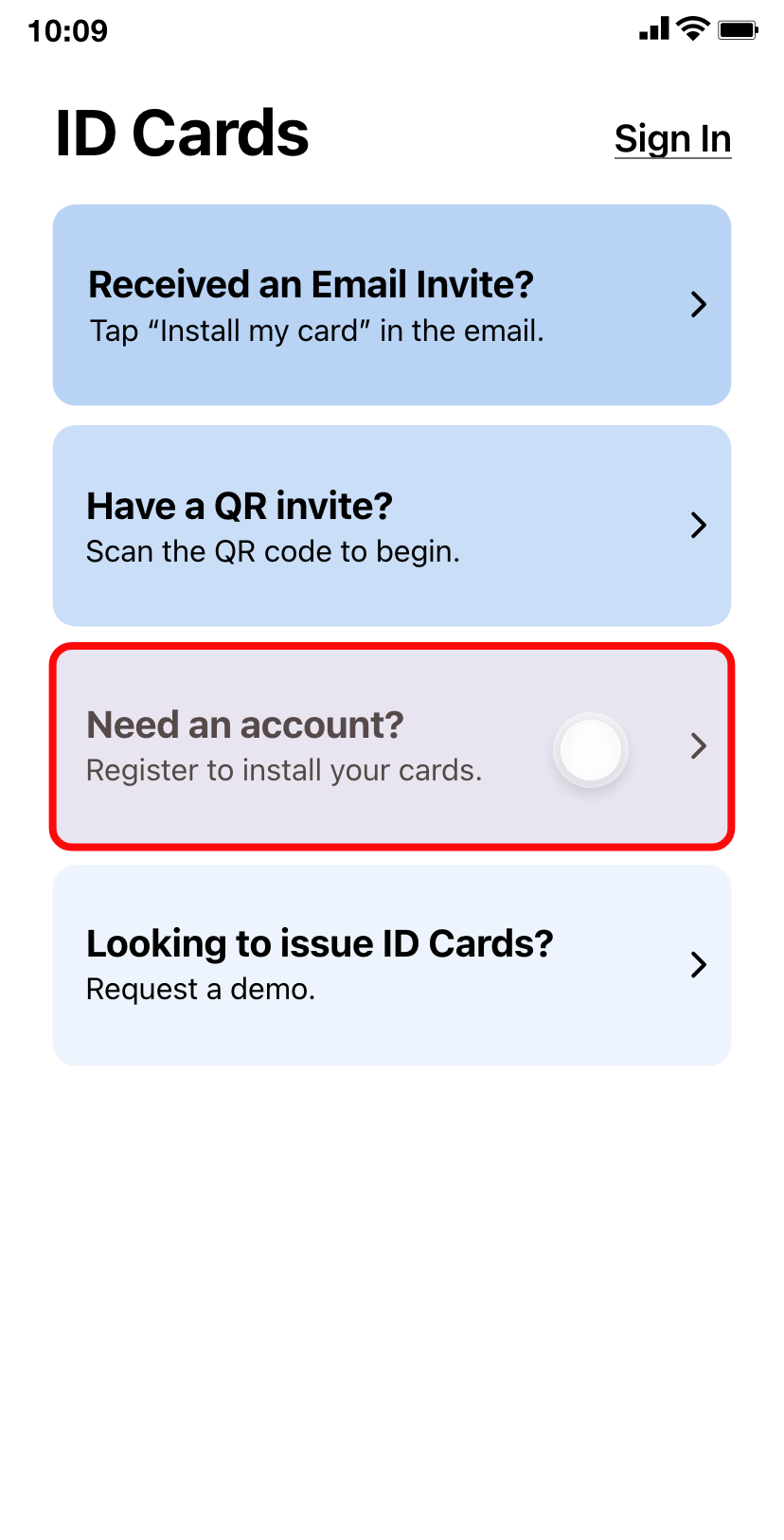
Open the ID123 App
Open the ID123 App and tap “Need an account” to begin the account registration process.
Step 3
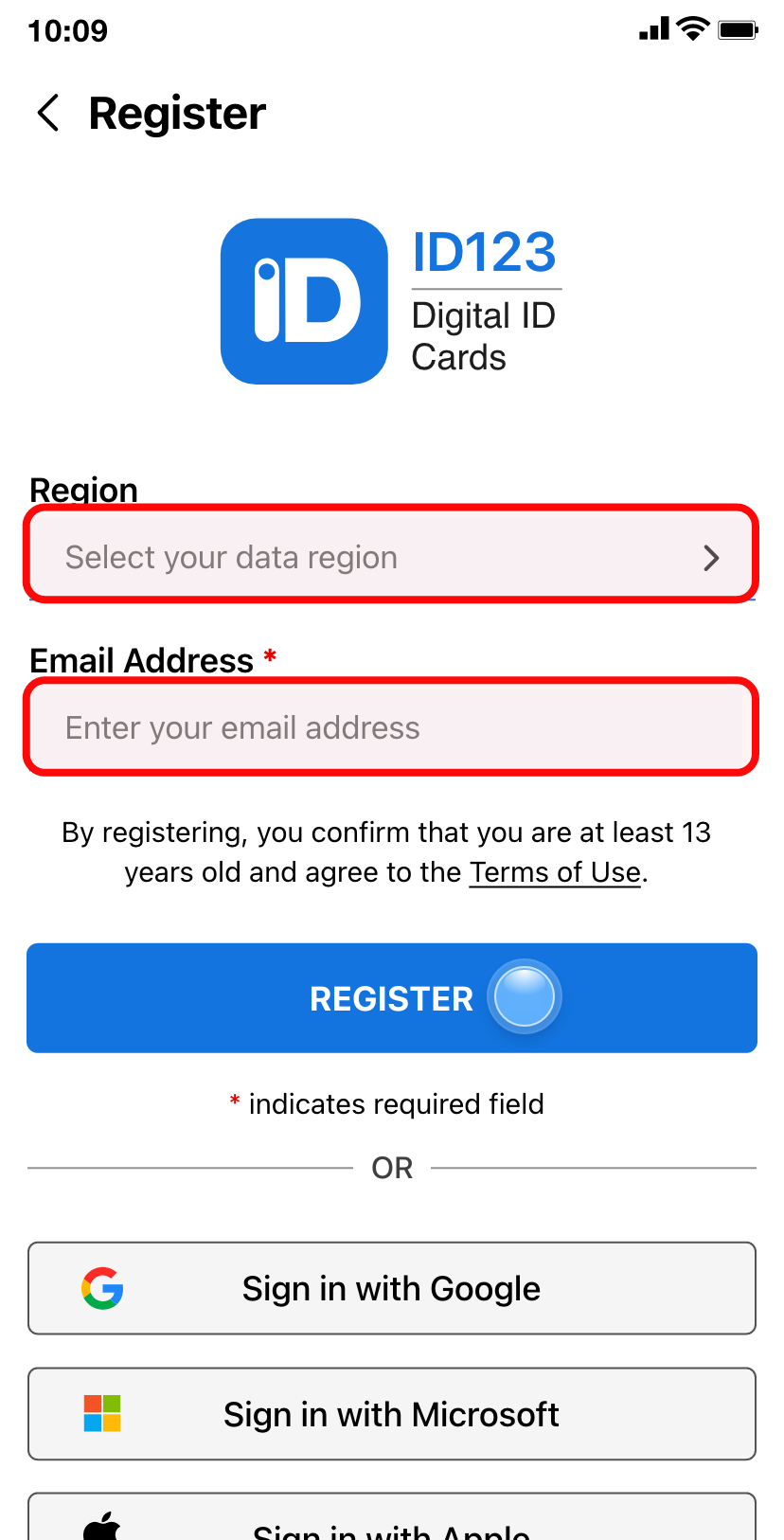
Select Region and Enter Email Address
Select the region where your institution is located, enter the email address your institution issued the ID card to, and then tap ‘Register’.
Step 4
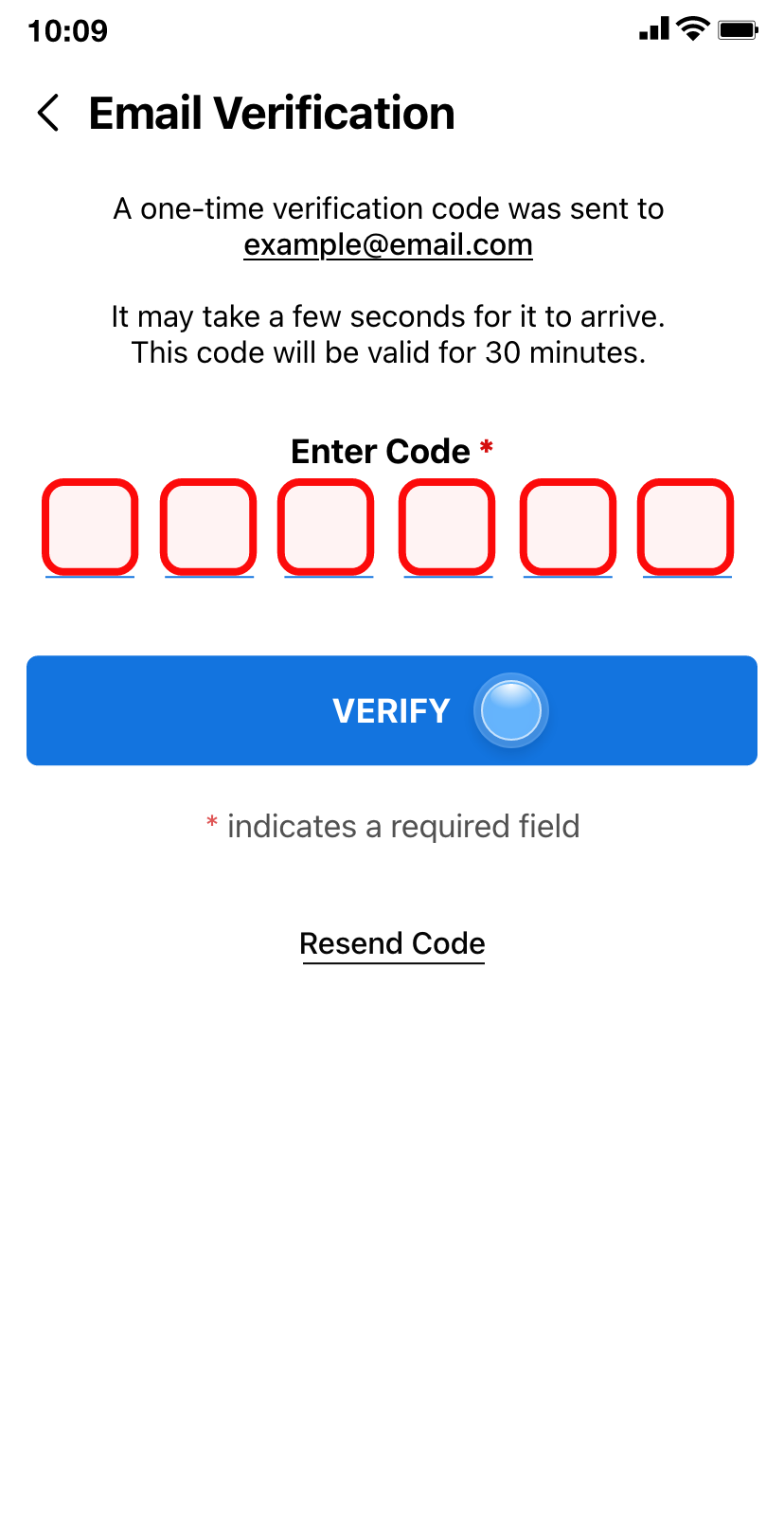
Verify Your Email Address
You will receive a verification code sent to your email. Enter the code in the ID123 and tap ‘Verify’ to complete your registration. Please note that the verification code expires in 30 minutes. In case your verification code expires, tap on ‘Send a New Code’ to receive a new code to your email address.
If you’re having trouble with registration:
- Make sure to verify within 30 minutes of receiving the code, or request a new code.
- Check your spam folder for
- Or reach out to ID123 Support for technical assistance.