
When a cardholder loses their phone or switches to a new device, it’s important to make sure their digital ID card is removed from the old one. This helps prevent any chance of unauthorized access. It’s especially critical for institutions that follow a one-device-per-cardholder rule, since the card must be cleared from the previous device before it can be installed on a new one.
In most cases, cardholders can remove their digital ID card themselves directly from the ID123 app. However, there are situations where that’s not possible, such as when the device is lost, damaged, or no longer usable. When this happens, an IDMS Administrator can step in and securely remove the card from the old device using the ID Management System (IDMS). This allows the cardholder to safely regain access on their new device while keeping security and compliance intact.
Step 1: Search for the Card Record
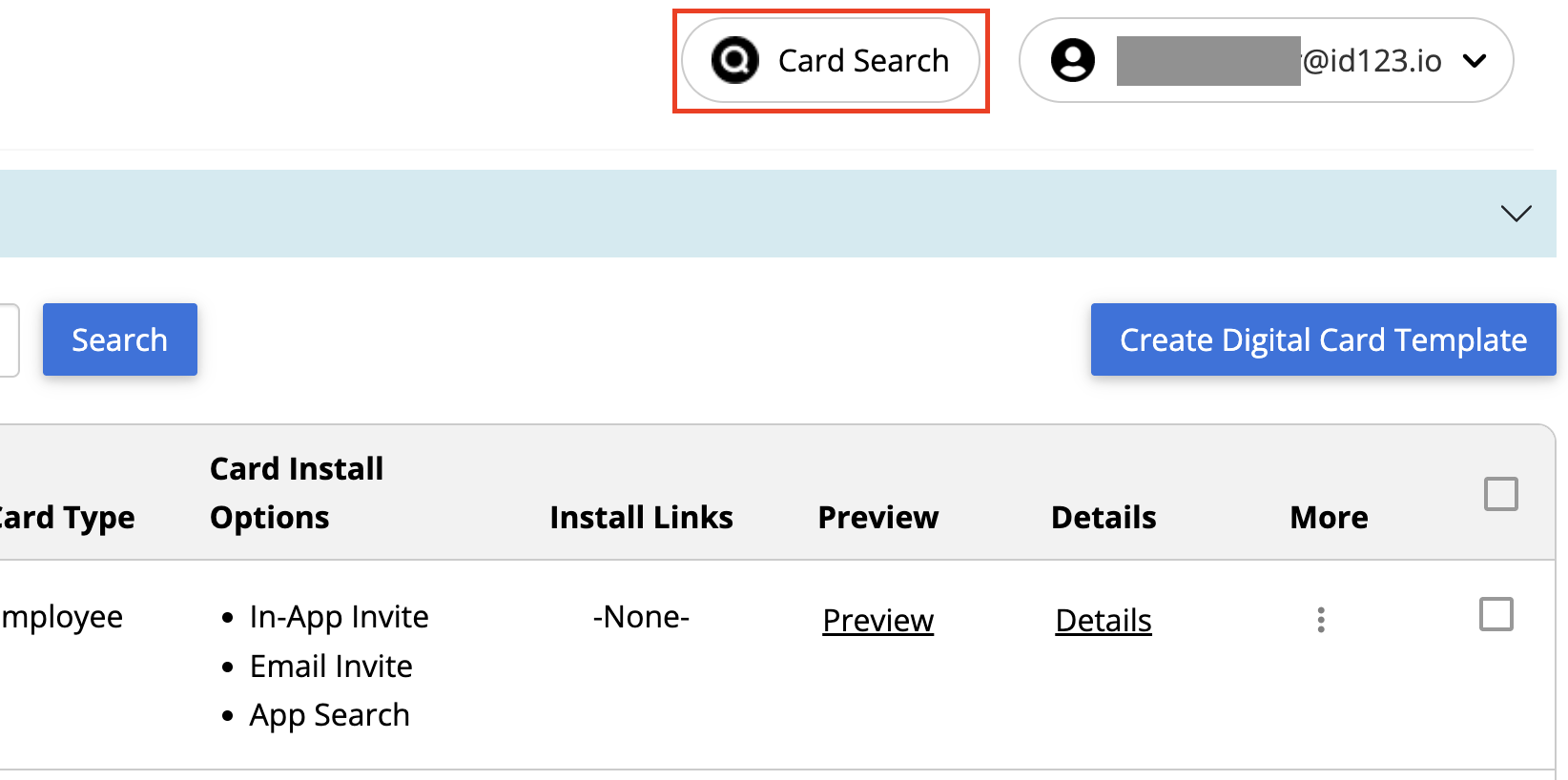
Start by logging into your ID123 ID Management System account. Click the ‘Card Search’ button at the top.
Step 2: Search for the Card Record
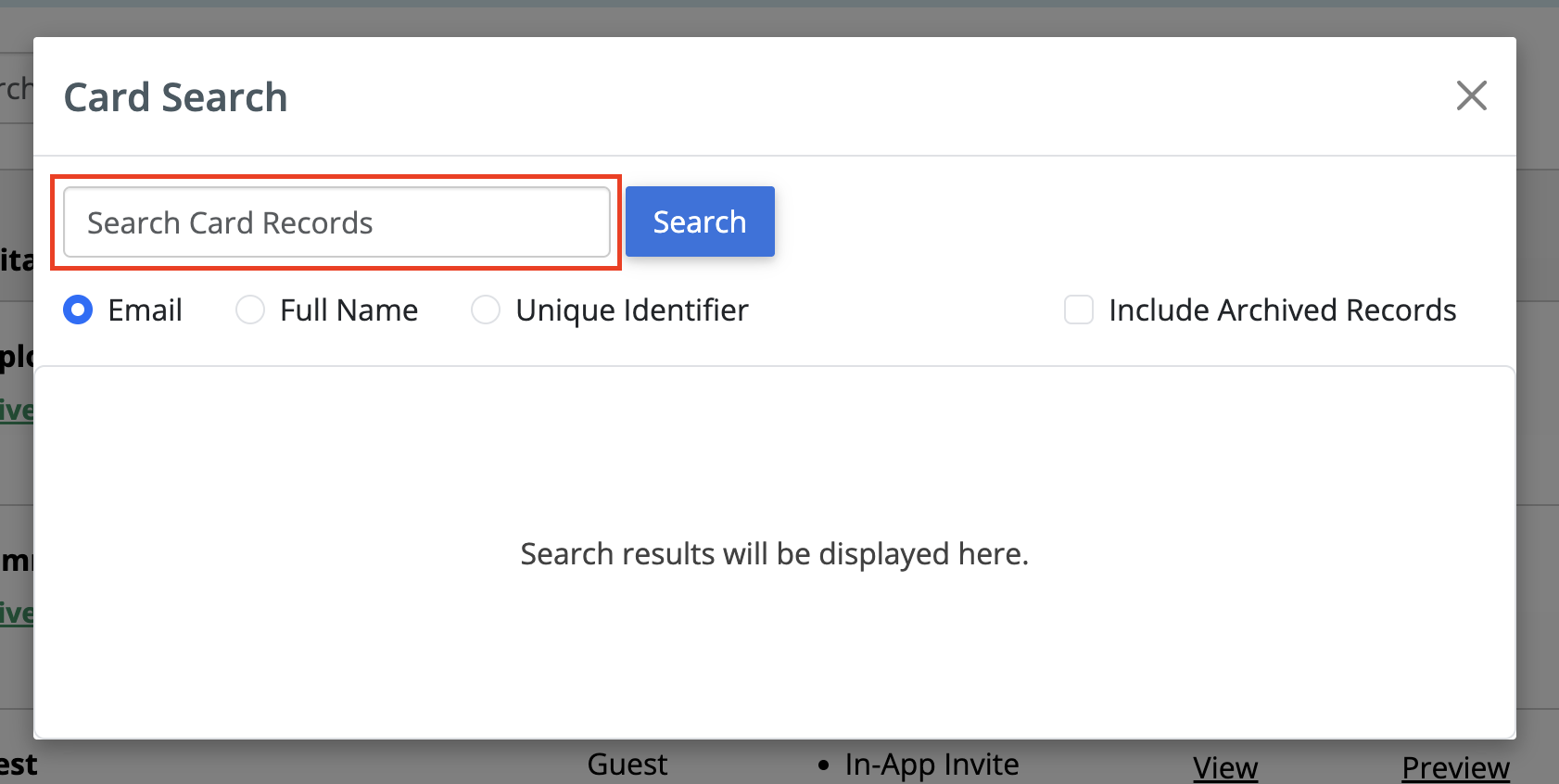
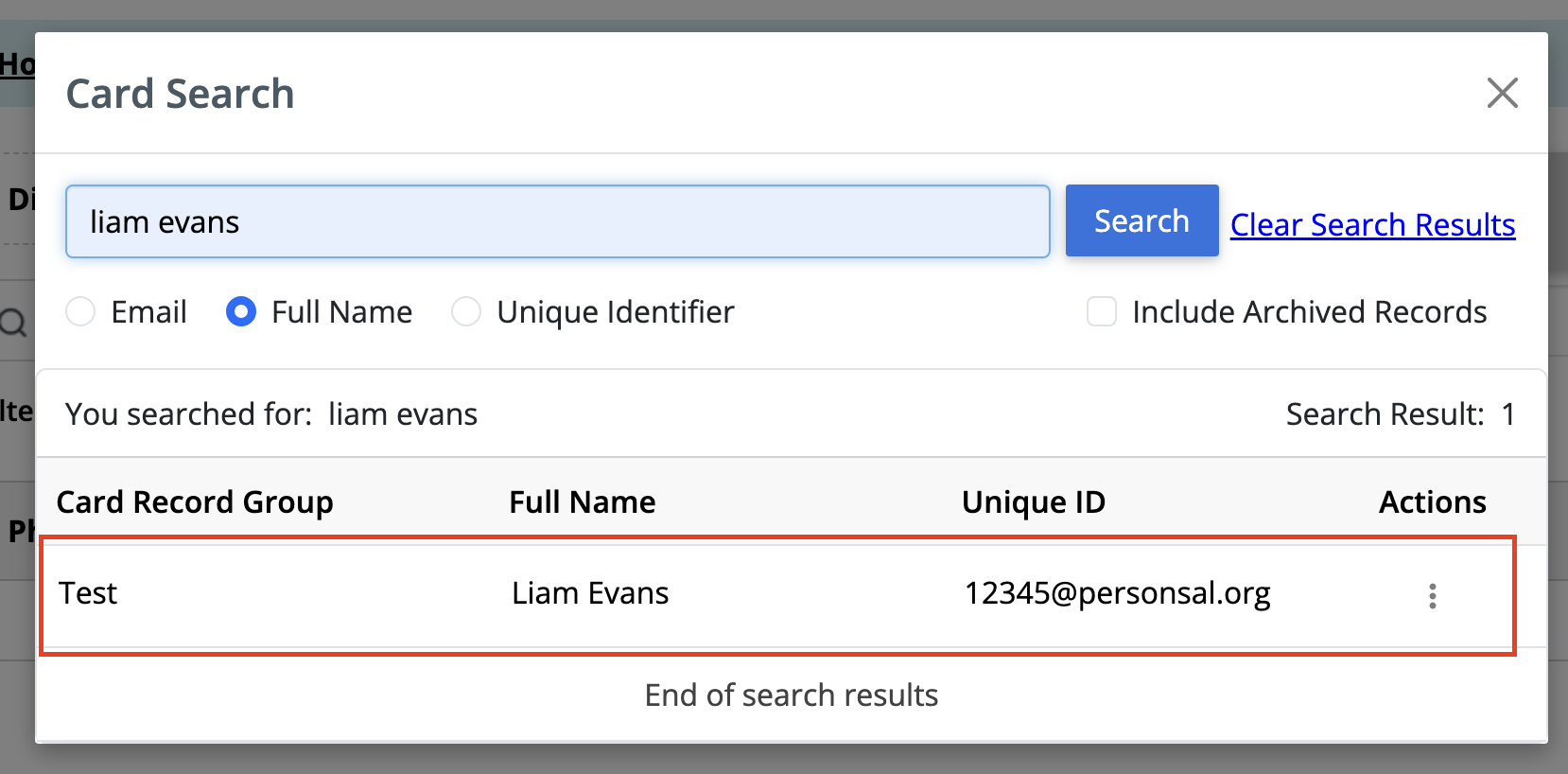
Search for the cardholder record associated with the device you want to remove. You can search using the cardholder’s email address, full name, or unique identifier. Enter the appropriate information and click on the Search button to pull up the record.
Step 3: View the Card Record
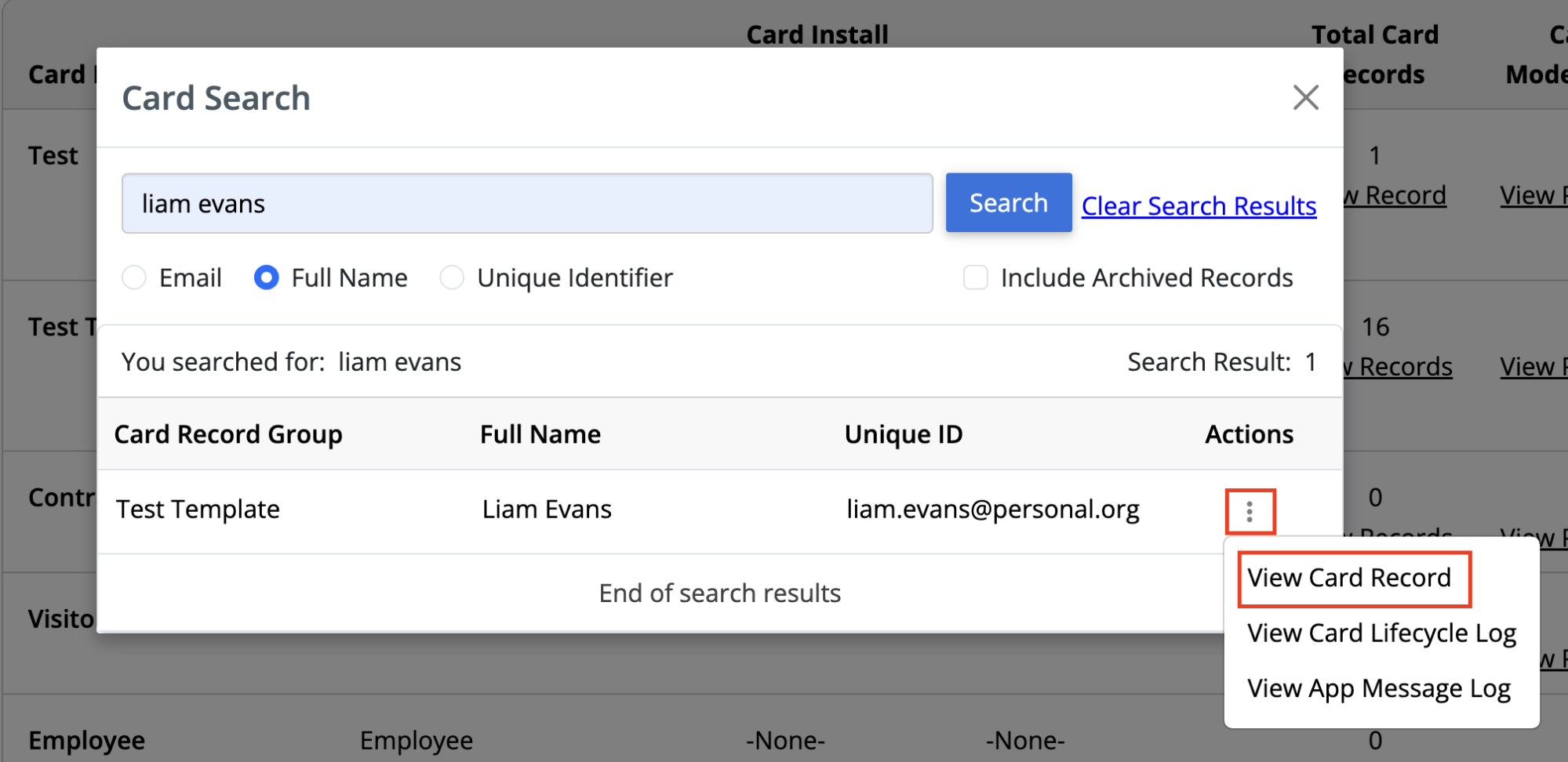
On the card record, click on the three-dot menu button and select ‘View Card Record’.
Step 4: View App Users
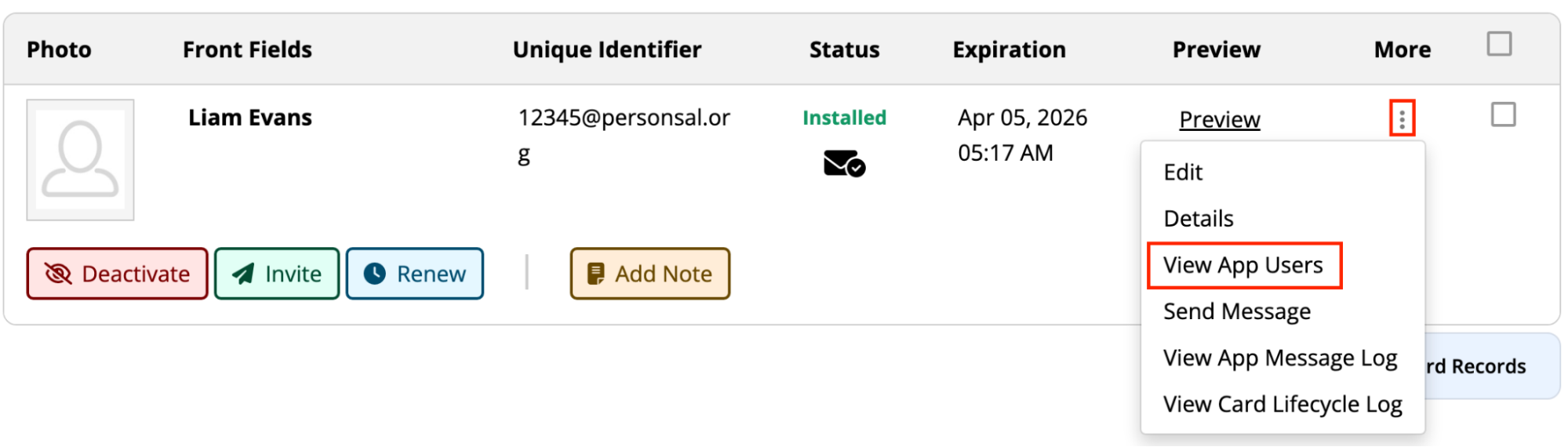
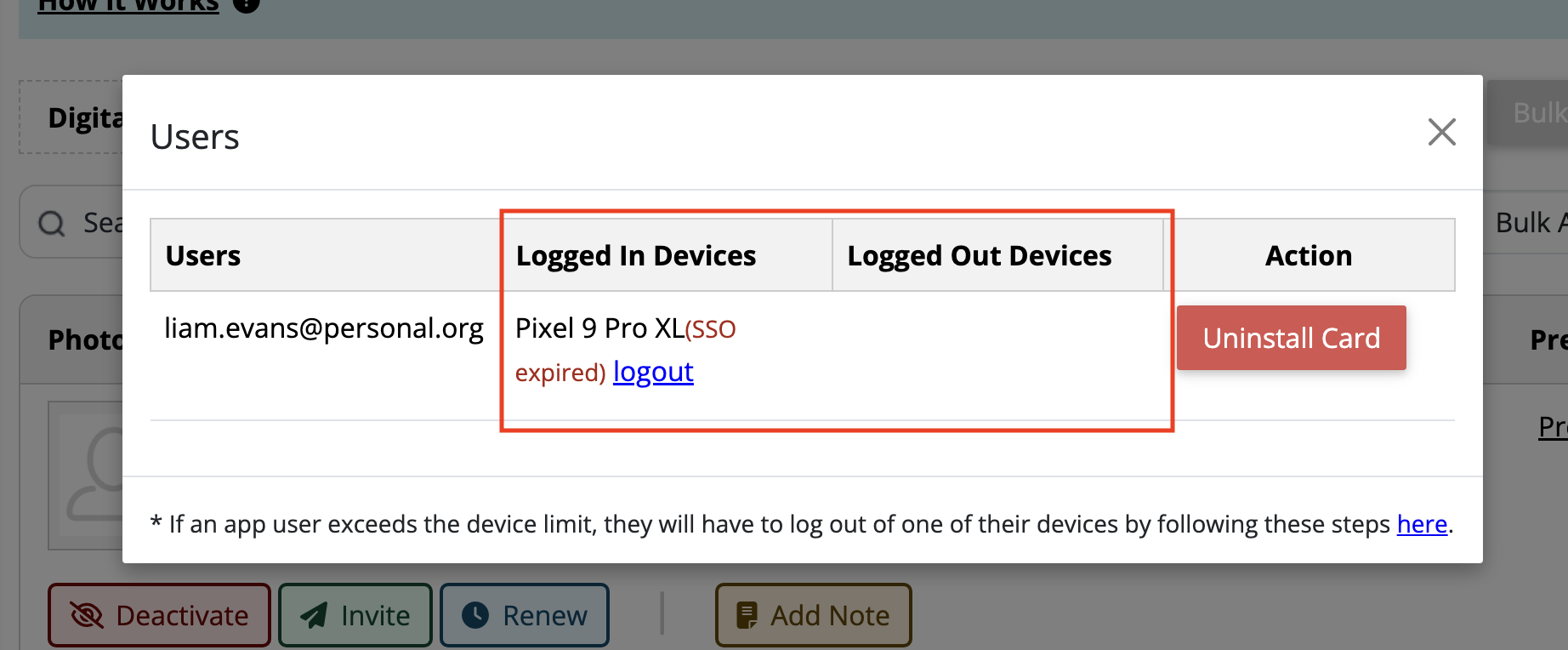
After the full card record is displayed, click on the three-dots under “More” and then click the “View App Users”. This will display a list of all devices where the cardholder is currently logged in.
Step 5: Logout From The Old Device
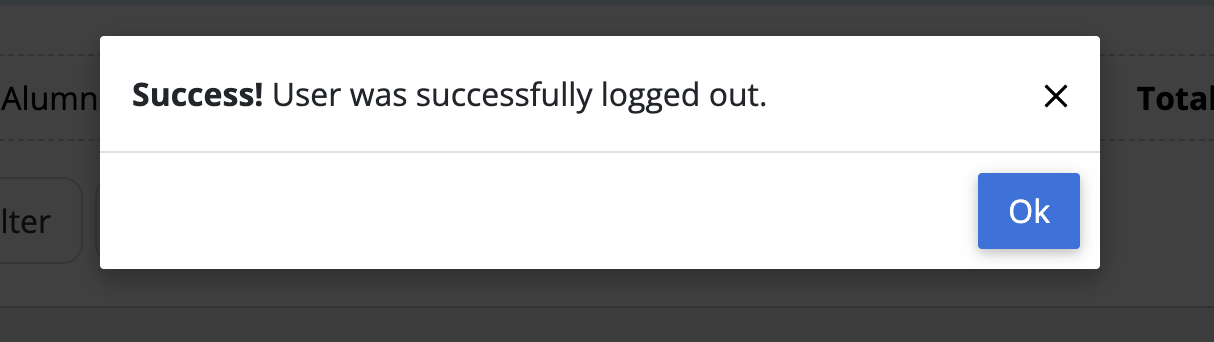
Click on the ‘Logout’ button next to the device you want to remove the digital ID card from. A confirmation message will appear, indicating that the user has been successfully logged out of the app on that device.
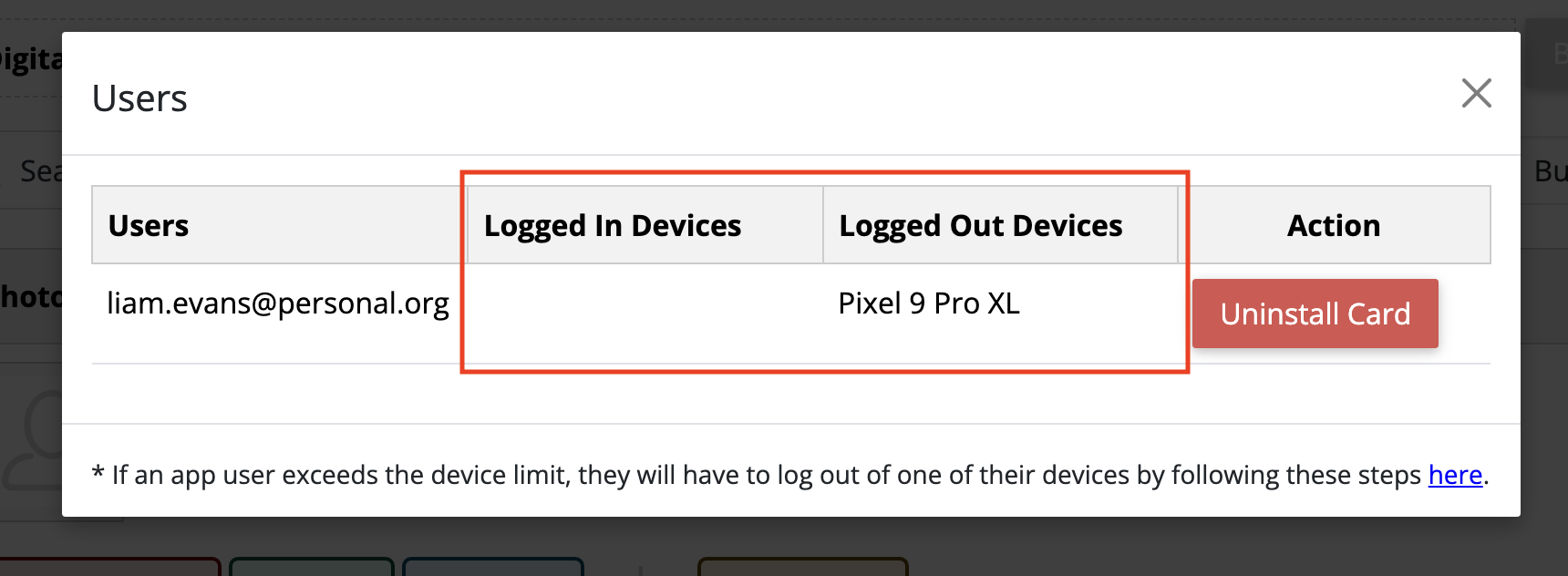
That’s it. If you return to View App Users, you’ll now see only the cardholder’s active device listed under Logged In Devices, with the removed device clearly shown under Logged Out Devices.
Still Need Help?
Please contact ID123 Support.