
Once you’ve connected your Ellucian Banner or Colleague account to ID123 (see How to Integrate with Ellucian Banner or How to Integrate Ellucian Colleague with ID123’s ID Management System), the next step is to set up a sync schedule. This tells ID123 how often to pull updated cardholder data from Banner or Colleague, and which records to include using a Person’s Filter.
Step 1: Open Your Sync Connection
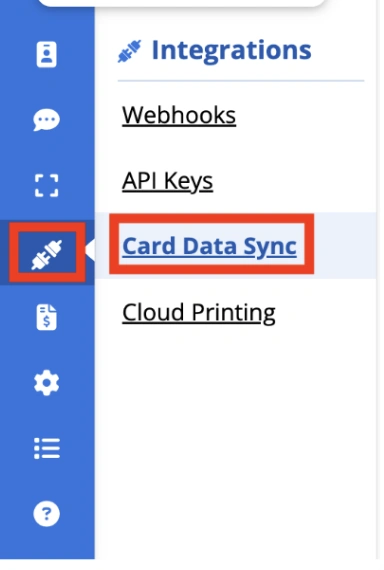
- From the IDMS navigation panel, go to ‘Integrations’.
- Navigate to ‘Card Data Sync’.
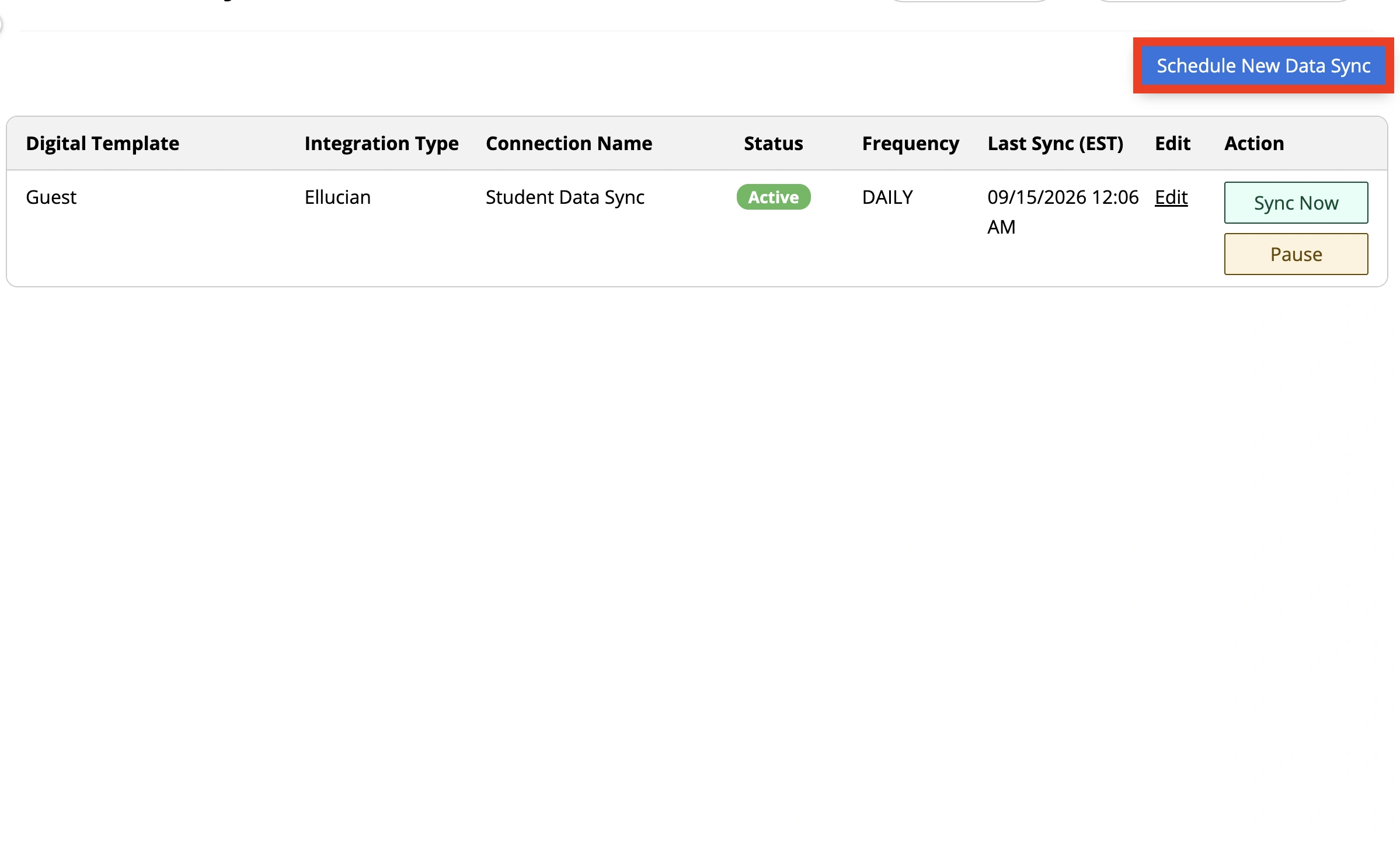
Navigate to ‘Card Data Sync Schedule’ and select ‘Schedule New Date Sync.’
Step 2: Choose What to Sync
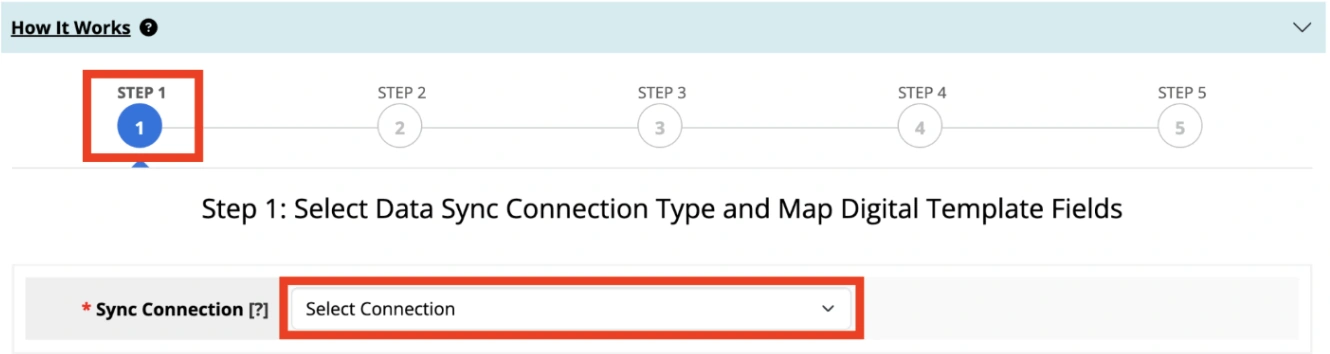
- Select the ‘Sync Connection’ you wish to create a schedule for.
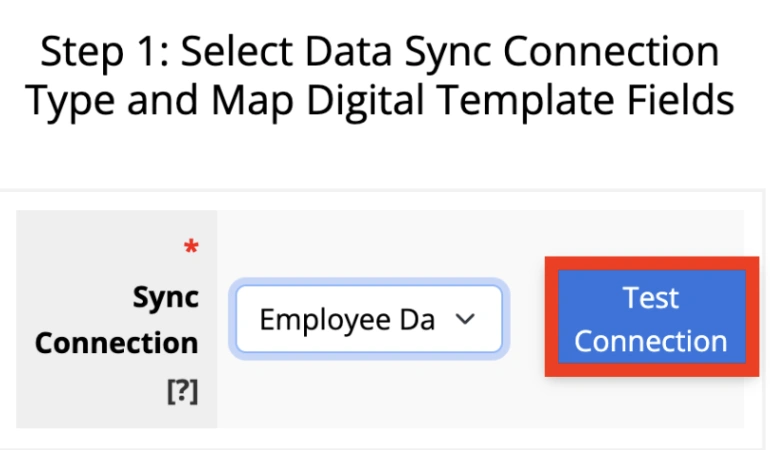
- Click ‘Test Connection’.
- Then select the ‘Template’ you want this sync to populate.
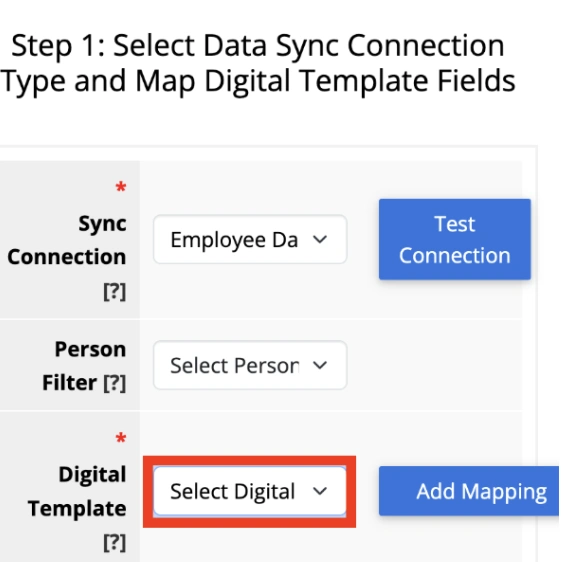
* Substep: Map Your Fields
- Match the fields coming from Banner or Colleague (name, email, photo, ID number, etc.) to the corresponding fields on your ID123 card template.
- If you already completed field mapping when you set up the connection, you can confirm it here rather than redo it.
- If you use different card templates for different groups (for example, undergraduate students vs. graduate students), you’ll set up a separate sync for each template.
* Optional Substep: Set Up Your ‘Person’s’ Filter
- This is the step that trips people up most, so here’s what it actually does. A Person’s Filter tells ID123 which people in Banner or Colleague should be included in this particular sync. Without a filter, a sync would attempt to pull every person record available through your Ellucian connection, which is rarely what you want, since most institutions only want to issue cards to specific groups (for example, currently enrolled students in a particular program, or active employees).
To set up a ‘Person’s’ Filter:
- Click ‘Add Filter’.
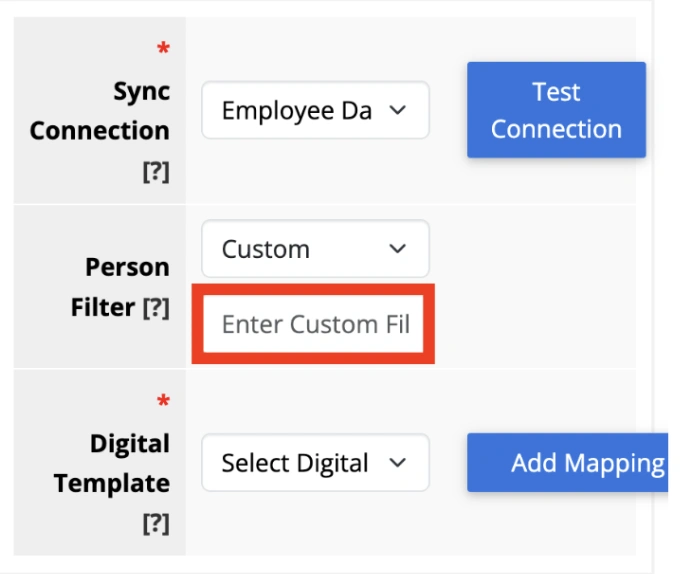
- Choose the field you want to filter on; common choices are academic program, academic level (e.g., Undergraduate vs. Graduate), enrollment status, or admission population (e.g., First-Time vs. Transfer).
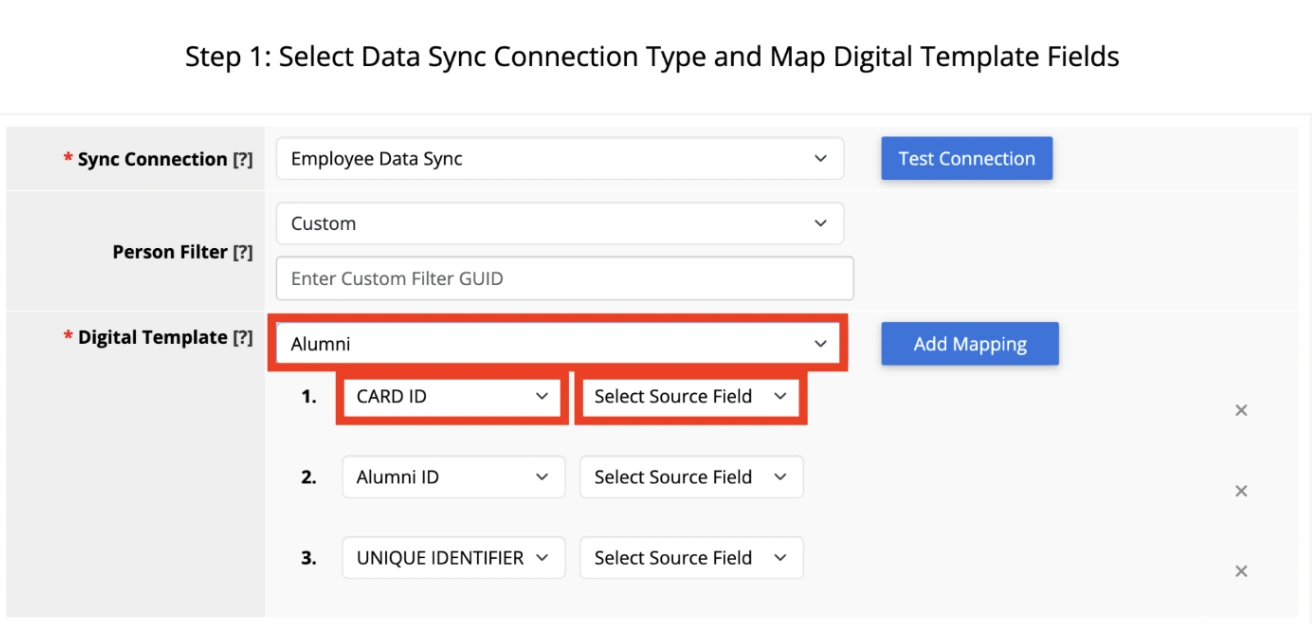
- Choose the value(s) that should be included. Anyone who doesn’t match will be excluded from this sync.
- You can stack multiple filter conditions, for example, ‘Academic Level = Undergraduate’ AND ‘Enrollment Status = Active’— to narrow things down further.
NOTE: Changing a ‘Person’s’ Filter after a sync is already running won’t automatically remove cards from people who no longer match, reach out to support if you need help cleaning up records after narrowing a filter.
Step 3: Set the Sync Frequency
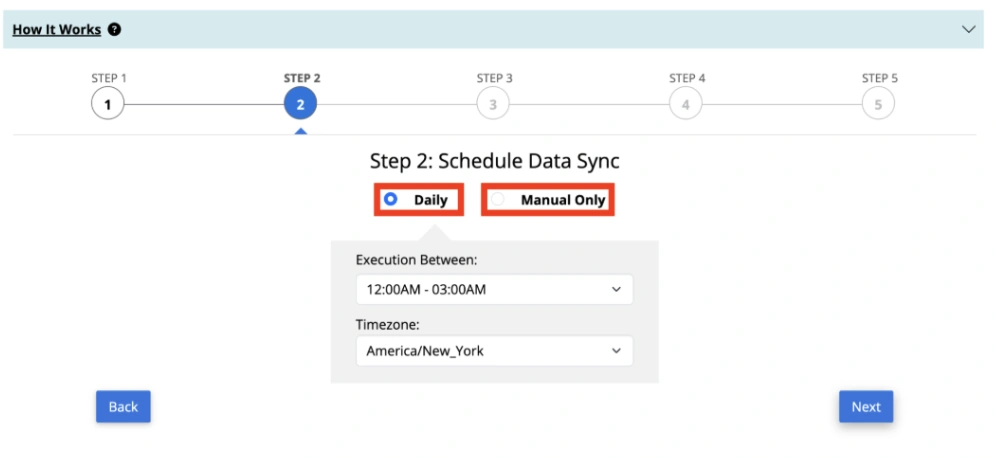
- Choose how often you want this sync to run: daily or manually depending on how quickly your institution needs new or updated records to reflect on ID123.
- Most schools run daily syncs during the academic yearIf you select ‘Manual’, this option won’t sync on its own — it only runs when you click the ‘Sync Now’ button.
Step 4: Select Records
- You’ll choose whether the sync applies to new cardholder records only or to new and existing records.
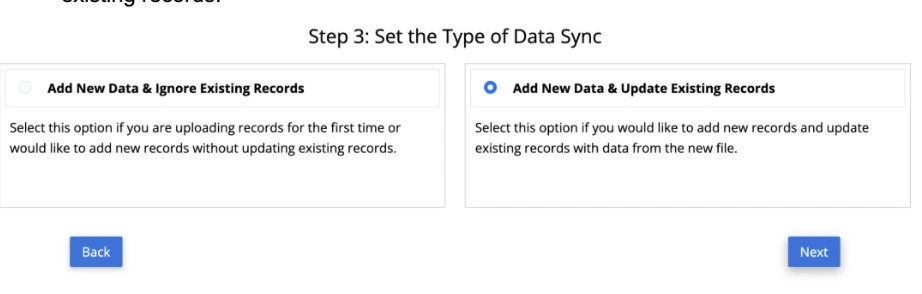
- Select which actions the sync should take when it runs
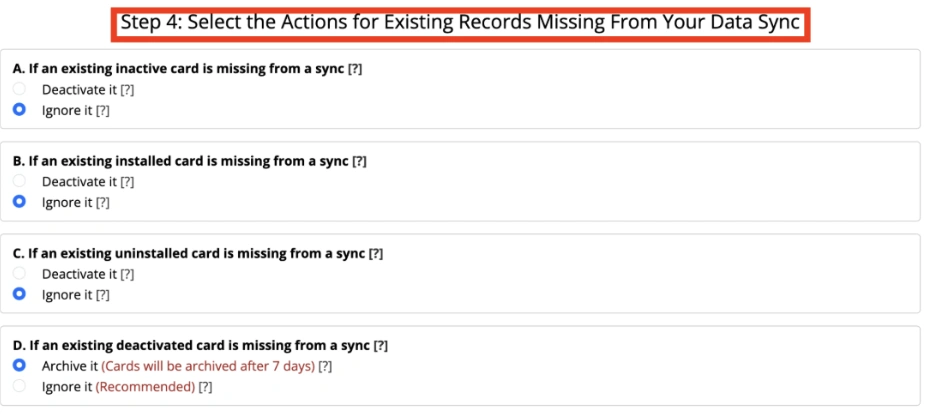
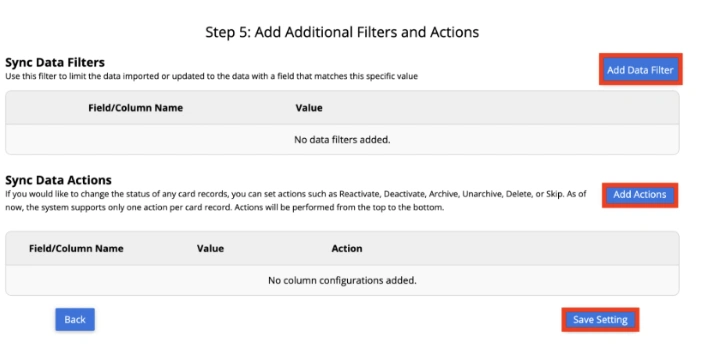
Step 5: Optionally set Actions and Filters
- Set additional ‘Actions’ and ‘Filters.’
NOTE: Once your schedule is running, you can check on it anytime from the ‘Card Data Sync Schedule’ page, which lists the date and time of the last successful sync for each connection.
Step 6: Save and Confirm
- Select ‘Save’.
- You’ll see the new sync listed under ‘Card Data Sync’ with its schedule and filter summary.
- You can click into it at any time to check the date/time of the last successful run, or to edit the filter or schedule.
Need Help?
Contact ID123 Support if you have questions or run into an issue.