
When an administrator invites you to scan ID cards for their organization, you will receive a scan session email invitation. You do not need any additional software or hardware to start scanning; just any device with internet access and a camera. This article walks you through how to accept a scan session email invitation so you can start scanning ID cards.
Step 1: Open Your Scan Session Invitation
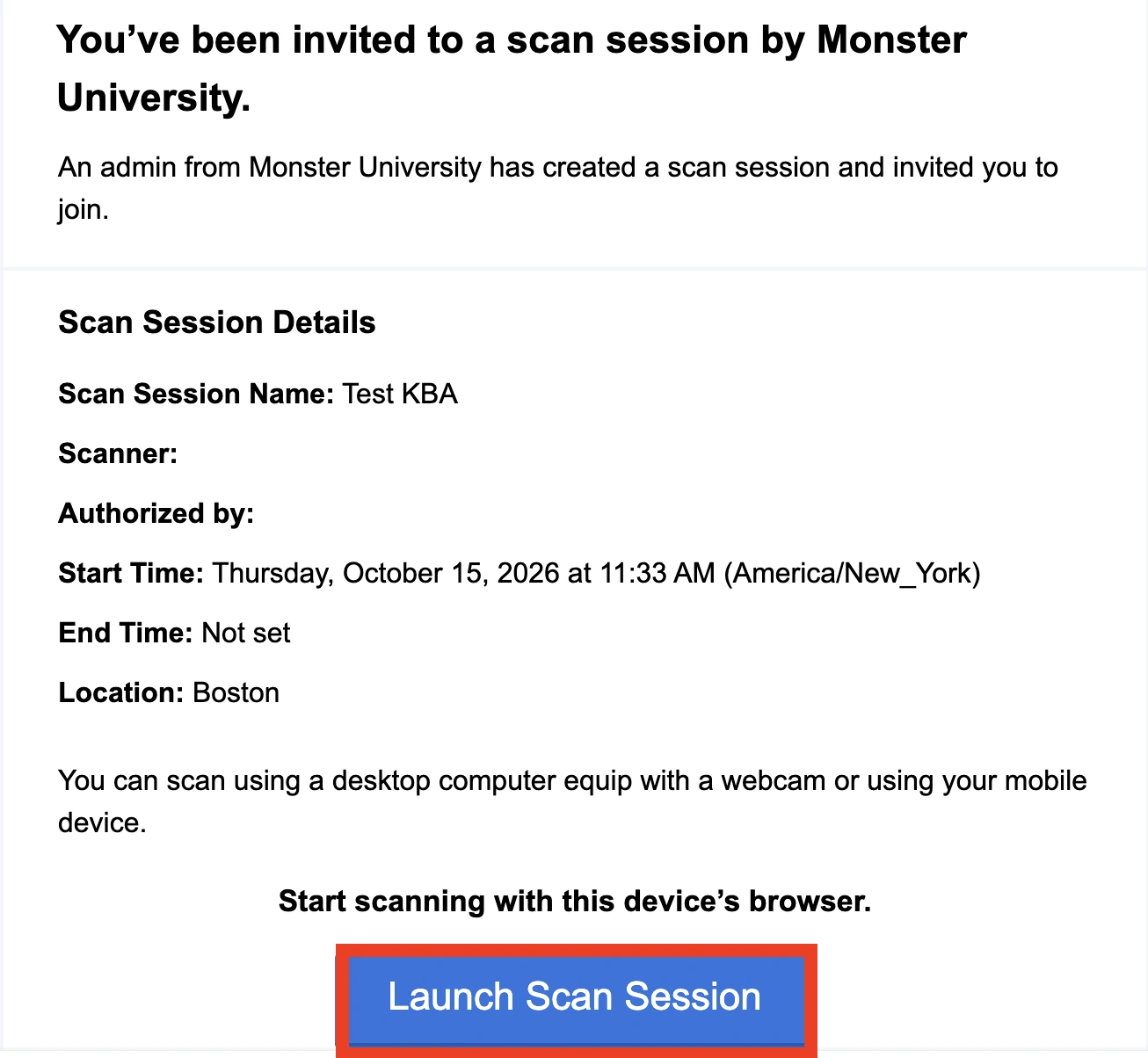
- Open the scan session invitation email from your email inbox. You should see an email sent from “app@id123.io” with your scan session invite.
- If you open the email on the device you will use to scan. Click the ‘Launch Scan Session button’ in the email to open the scan session in your web browser.
- Alternatively, you can scan the QR code located in the email invitation to open the scan session on a different device.
Note:
Can’t find the email? Check your spam or junk folder. If it is not there, ask your administrator to resend the invitation.
Step 2: Verify Your Information to Launch
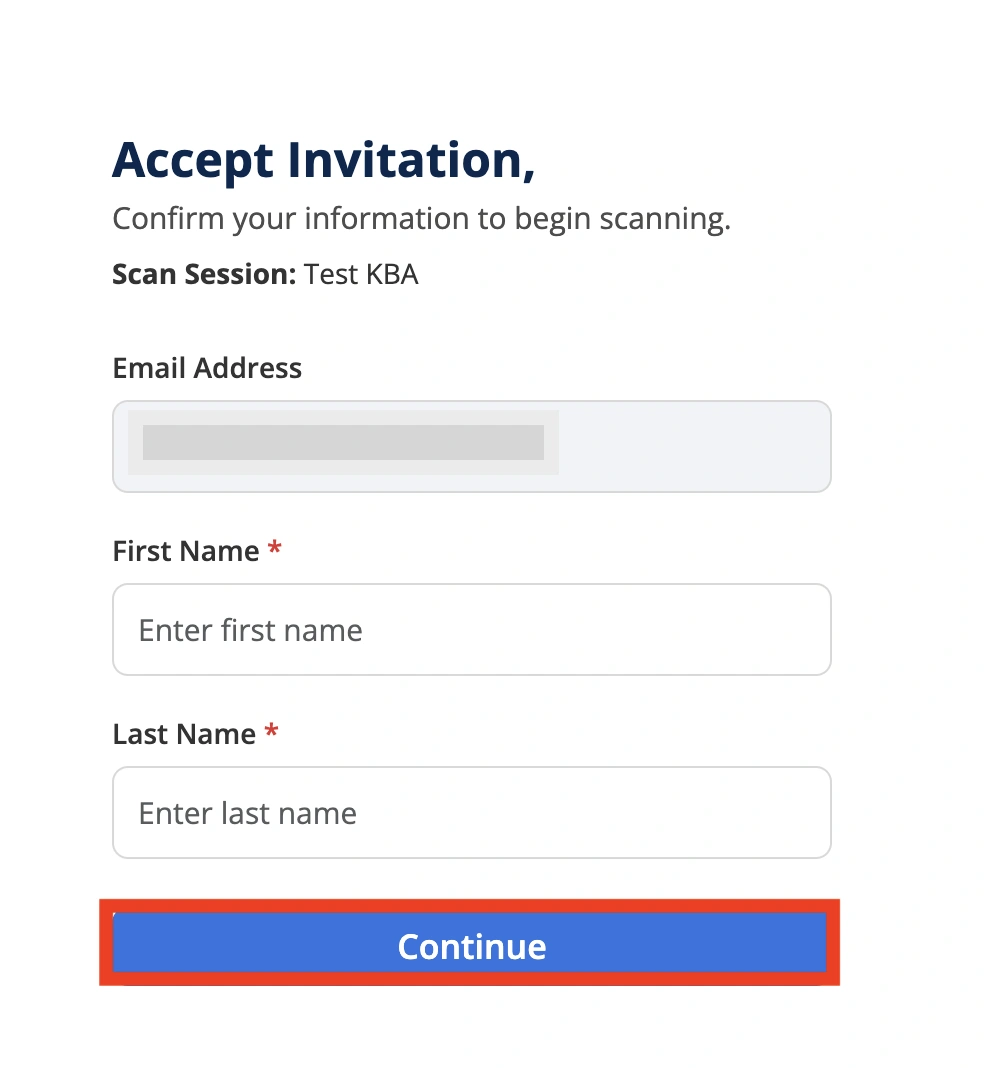
- Enter your email address, followed by your first and last name when prompted. (Use the email address the initial invitation was sent to.)
- Select ‘Continue’ to move forward.
Step 3: Allow Permission and View Scanner Information
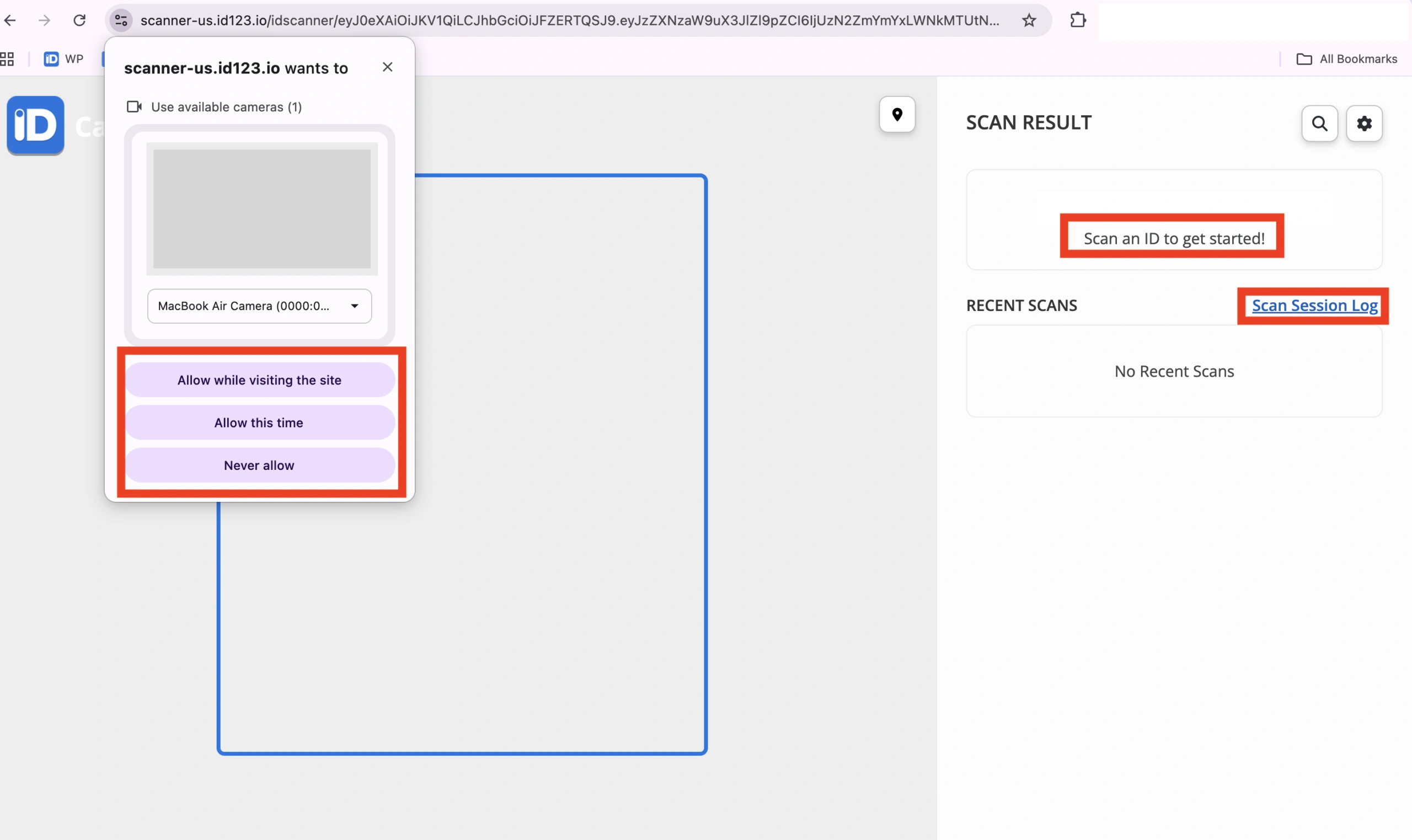
- Allow camera permissions on the device to begin scanning. You need camera access to verify and scan ID Cards.
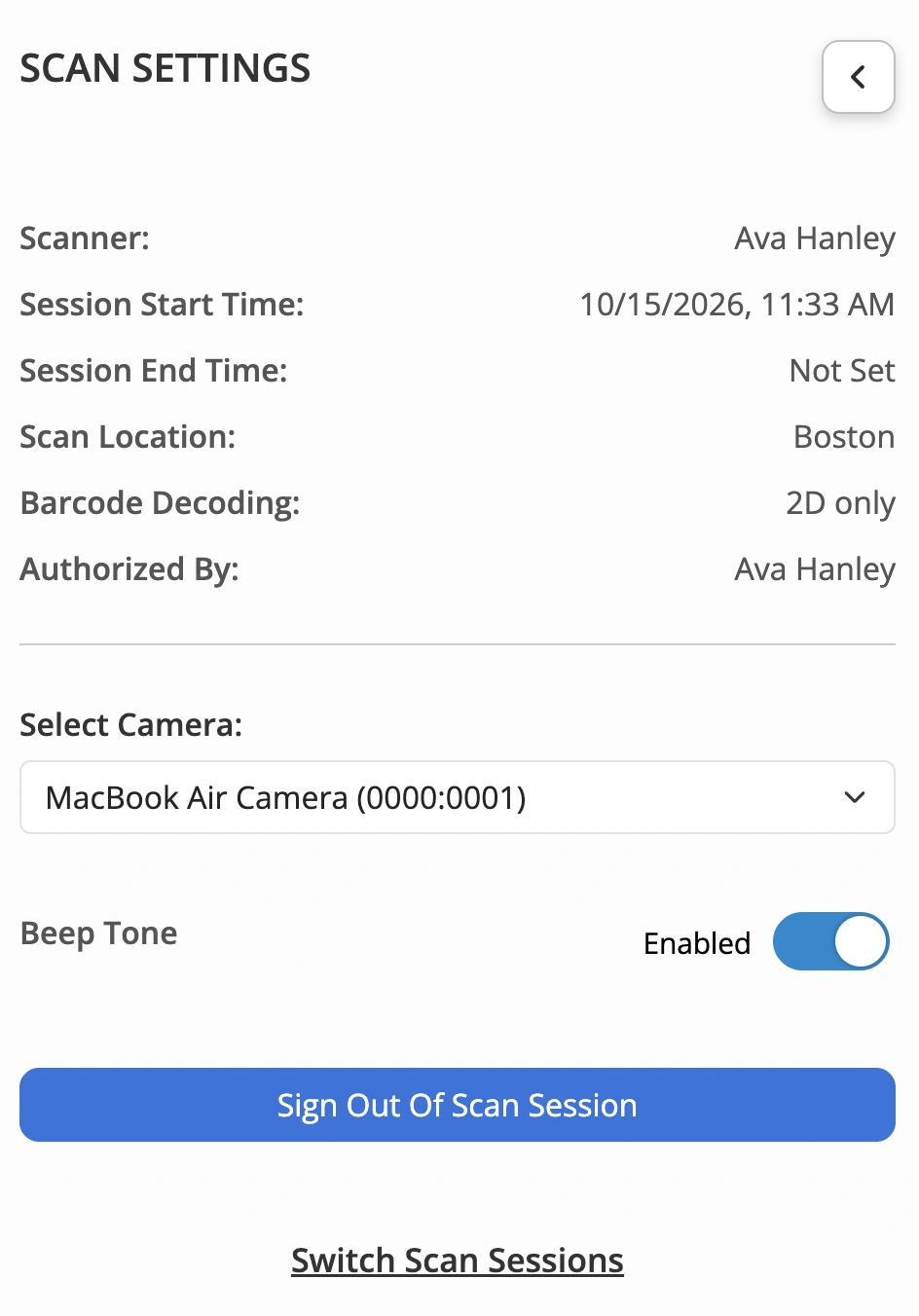
- On the right-hand side you will see the links to ‘Scan Session Log’ and to ‘Scan Settings.’ In settings, you can view information regarding the session such as ‘Start Time,’ ‘End Time,’ and ‘Scan Location.’
- The Scan session location is fixed by the administrator unless changed.
Step 4: Start Scanning
- You have now accepted the invitation and joined the scan session. Your status changes from ‘Invited’ to ‘Active’ for the administrator.
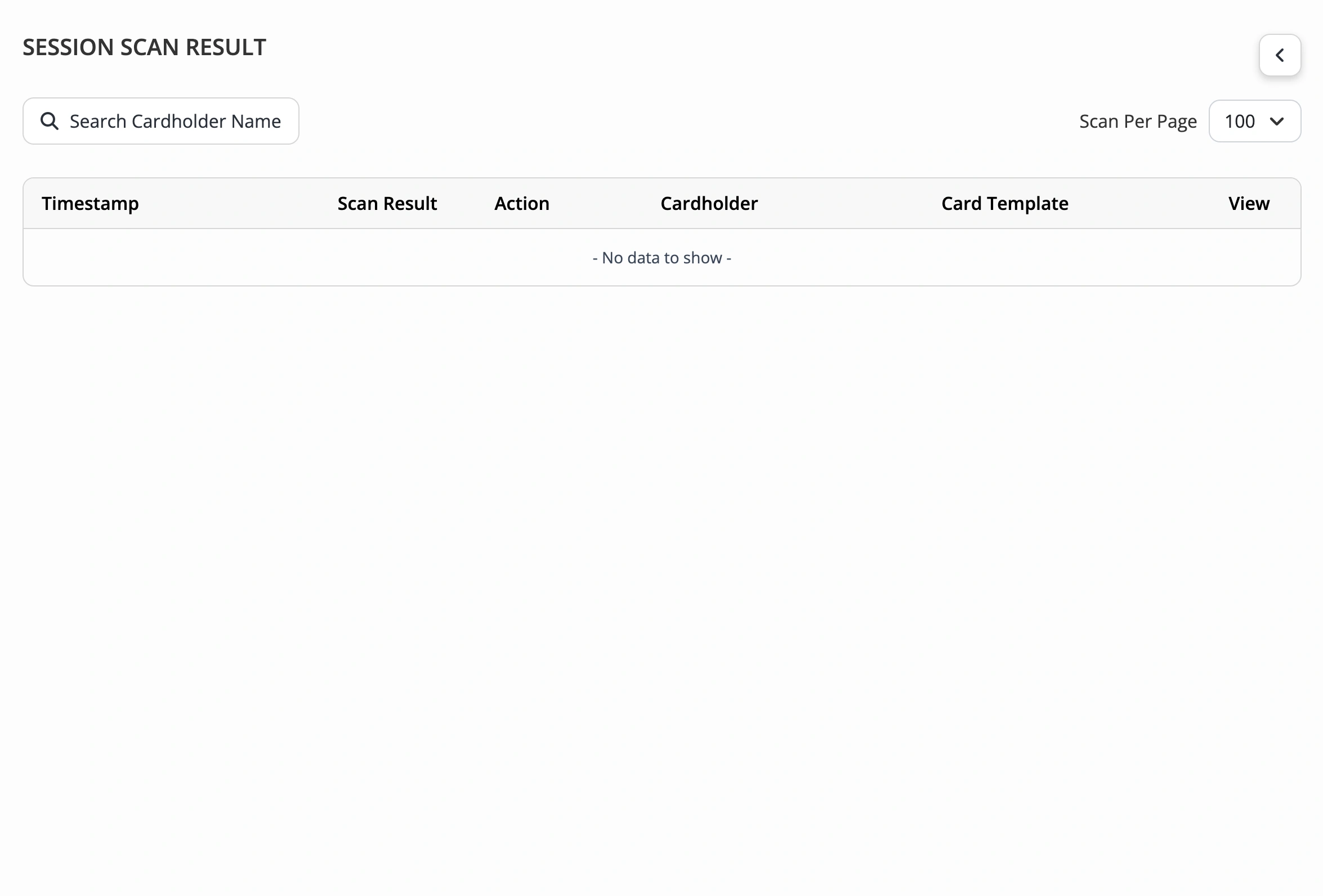
- View scan information in the ‘Scan Session Log’ including time and verification status.
Things to Know
- Session start time: If the session is scheduled to start in the future, you cannot begin scanning until the start date and time
- Session end and timeouts: You cannot scan after the session ends. You may also be signed out after a period of inactivity, and an administrator can deactivate or terminate the session or your access at any time
- Multiple devices: Depending on the session’s settings, you may only be able to use the session on one device at a time
- Your scans are logged: Every card you scan is recorded in the organization’s Scan Log along with your name and location
You are ready to start scanning! If you have any questions or trouble accepting your invitation, contact the administrator who invited you, or feel free to contact our support team.