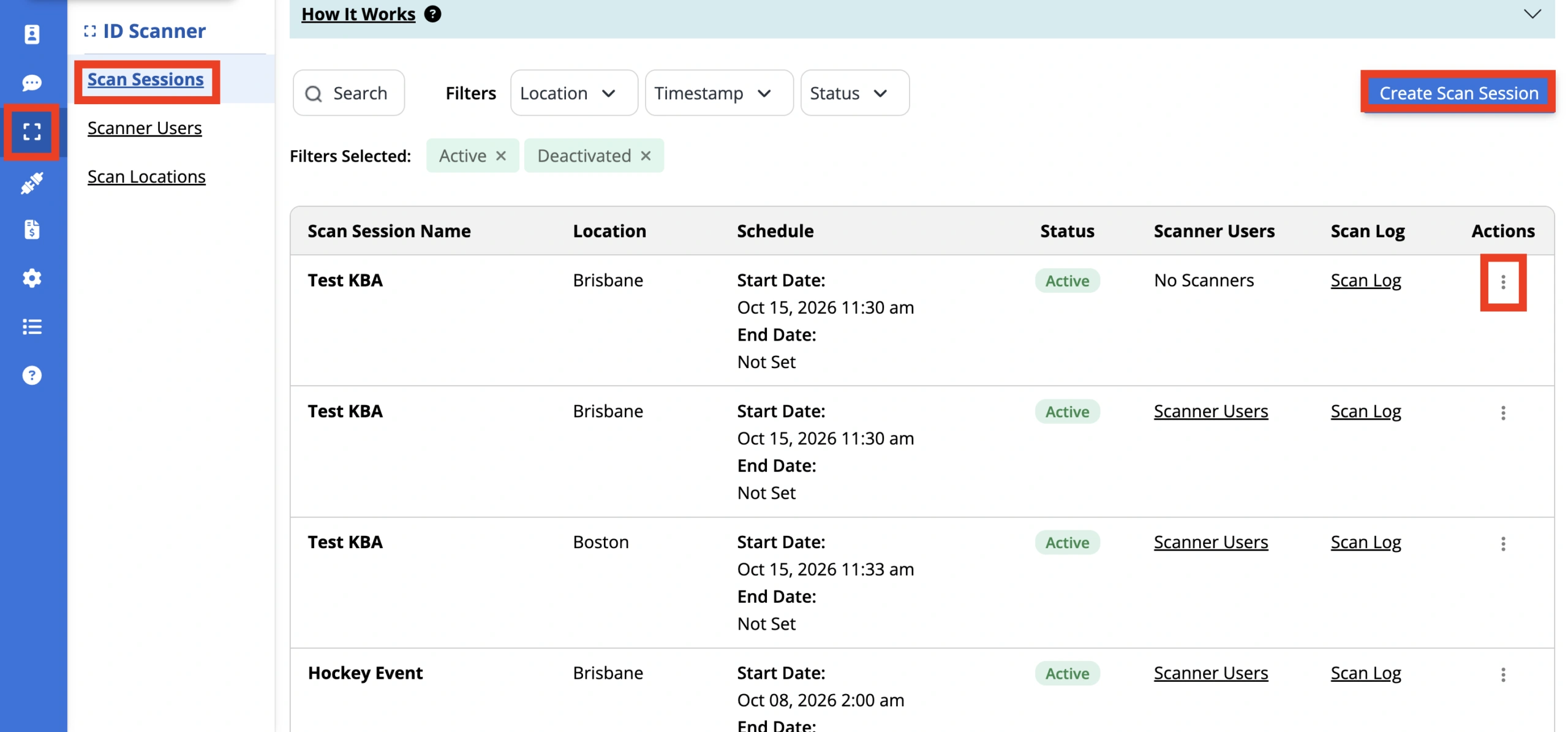
A scan session lets you designate specific people to scan and validate ID cards issued from your ID123 ID Management System (IDMS) account for a set period of time and at specific locations. Every card scanned during a scan session is recorded in the ‘Scan Log’. This article walks you through how to create a new scan session and configure its settings.
Step 1: Navigate to Scan Sessions
- Log in to your ID123 ID Management System (IDMS) account
- From the left-hand navigation bar, click the ‘ID Scanner’ tab
- Select ‘Scan Sessions’ in the sub-menu
- Click the ‘Create Scan Session’ button

Step 2: Enter the Session Details
- Scan Session Name: Enter a name for the scan session. The name must be unique within your IDMS account and is used to identify the session in your account and when inviting scanners.
- Who will be scanning?: Choose the type of individual who will be scanning ID cards:
- IDMS Admin: Select an existing IDMS administrator from the drop-down list.
- Guest: Enter one or more email addresses in the ‘Email Addresses of Scanners’ field, separated by commas (up to 100). Guests do not need an IDMS account, and each guest sets their own name when they join.
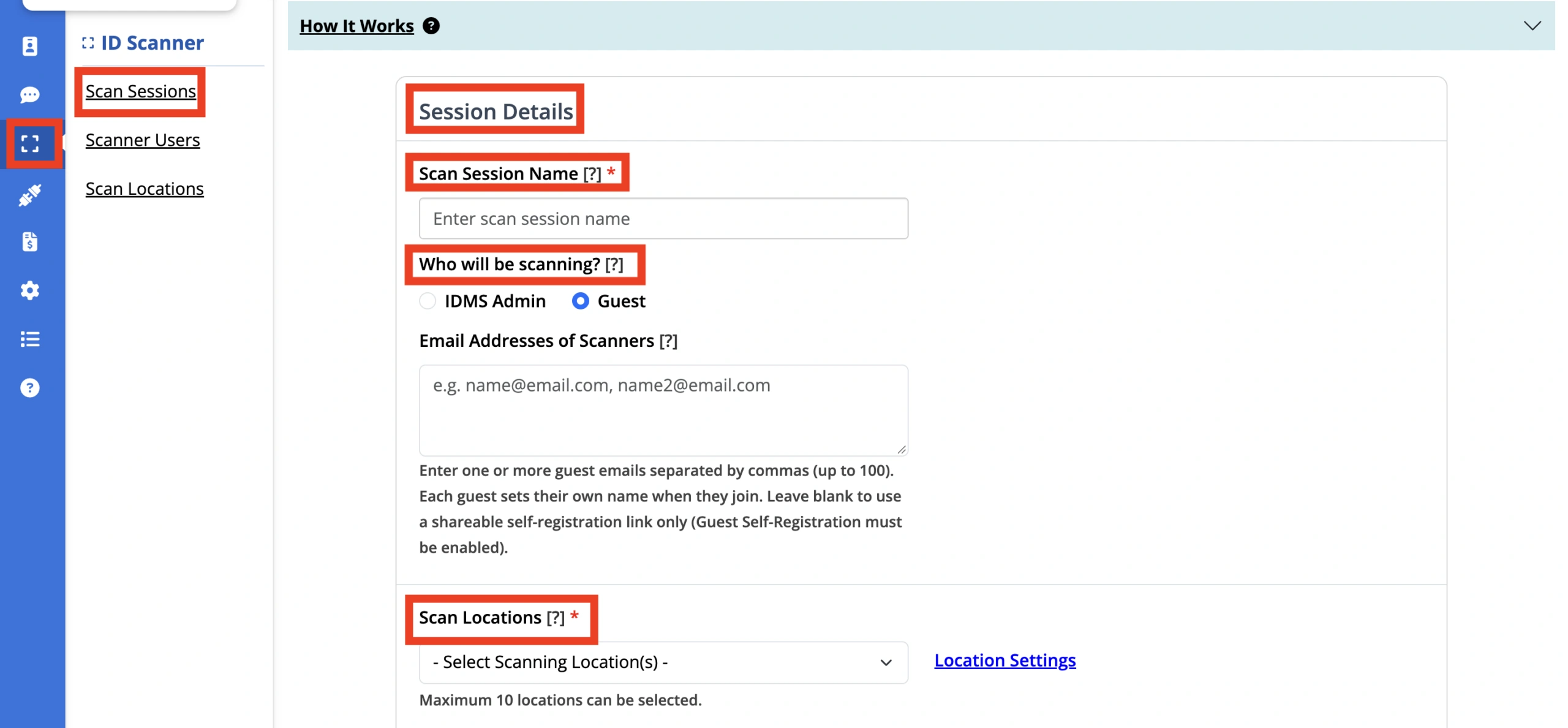
Step 3: Select Scan Session Locations
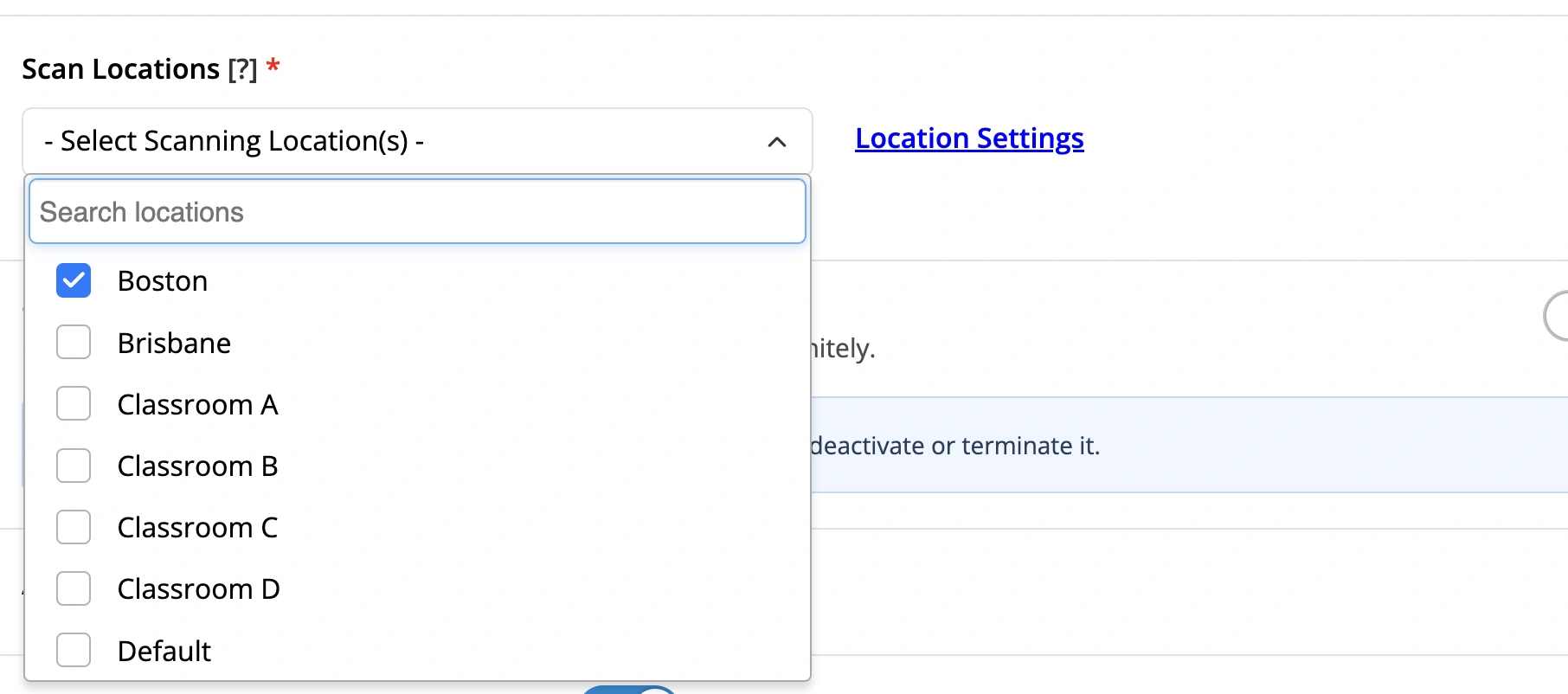
- Open the ‘Scan Locations’ drop-down and select the location(s) the scanner can choose from when they sign in to the session. You can select up to 10 locations.
- If the location you need is not listed, click ‘Location Settings’ to add it. If you do not have access to Location Settings, contact your institution’s IDMS administrator.
Step 4: Set the Scan Session Schedule
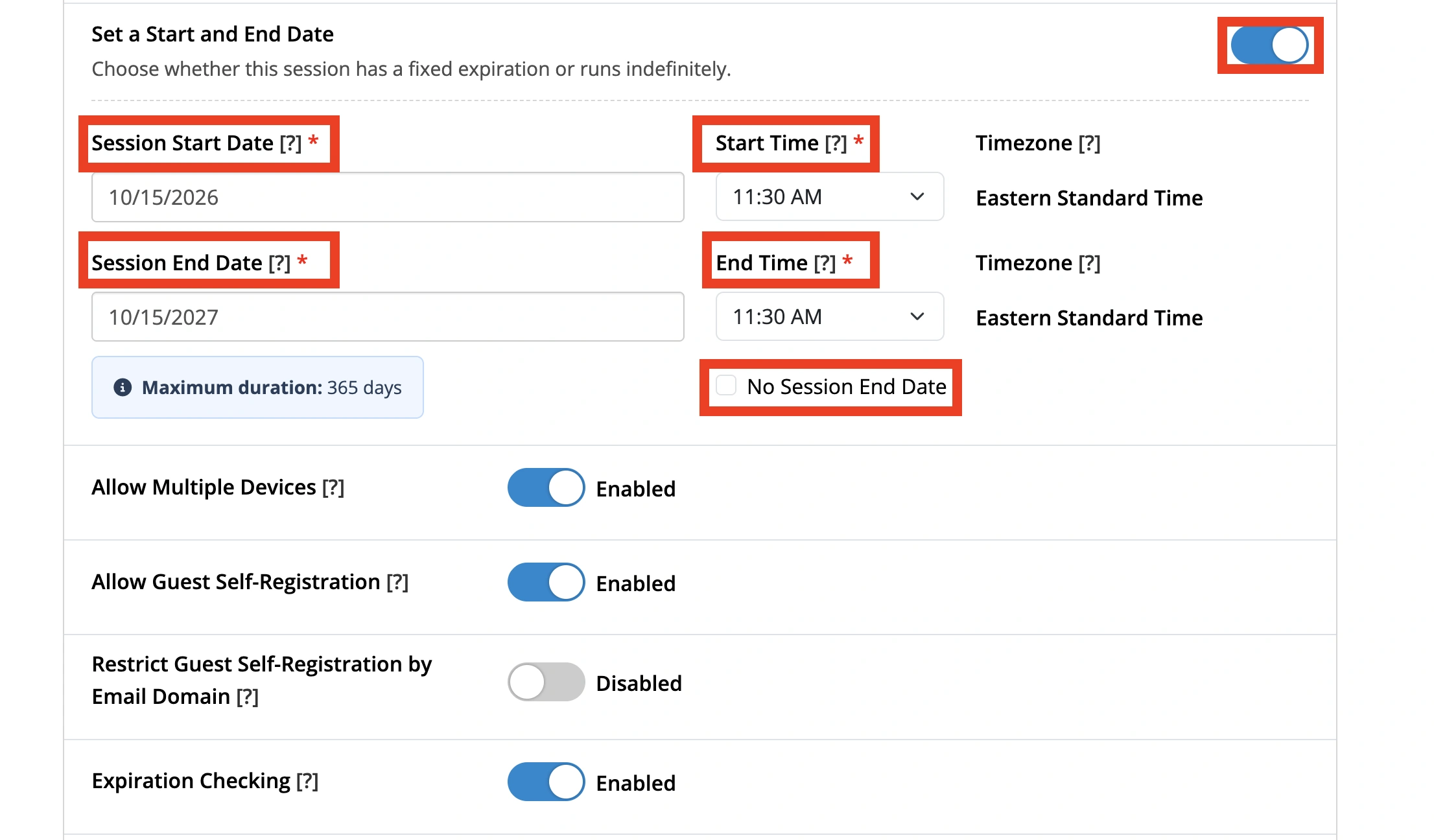
- Choose whether the session has a fixed schedule or runs indefinitely using the ‘Set a Start and End Date’ toggle.
- If the toggle is off, the session begins immediately and remains active until you deactivate or terminate it.
- If the toggle is on, enter the following:
- Session Start Date and Start Time: When the session becomes available. Scanners cannot begin scanning until the session starts.
- Session End Date and End Time: When the session closes. Scanners cannot scan after the session ends. Select ‘No Session End Date’ if the session should not expire.
- The session timezone is determined by the timezone set in your IDMS account.
Step 5: Configure the Scan Session Settings
- Configure the following settings as needed:
- Allow Multiple Devices: Allows the scanner to use the session on more than one device at the same time. When disabled, the session can only be open on one device at a time.
- Allow Guest Self-Registration: When enabled, guests who open the session’s shareable link can register with their own email address and receive a verification code there. When disabled, the code is sent only to the originally invited email address.
- Restrict Guest Self-Registration by Email Domain: When enabled, guests can self-register only if their email domain is in the ‘Allowed Email Domains’ list. This applies only when Allow Guest Self-Registration is enabled.
- Expiration Checking: When enabled, expired cards are flagged as expired when scanned. When disabled, expired cards are treated as active.
- Scan Result Privacy: Choose what cardholder information is displayed when a card is scanned: ‘Show Photo and Name’, ‘Show Front of Card Data’, ‘Show All Card Data’, or ‘Verification Only’.
- Search By Name: Allows the scanner to look up card records in your IDMS account by name.
- Allow Virtual Scan: Allows card records found through Search By Name to be scanned virtually, without the card being present.
- Enable 1D Barcode Decoding: Allows the session to read 1D barcodes in addition to 2D barcodes (such as QR codes). Click ‘Change Settings’ to manage the availability of 1D barcode decoding in your Account Settings.
- Camera Preference: Choose whether the front-facing or back camera is used for scanning. This preference is remembered for future scan sessions.
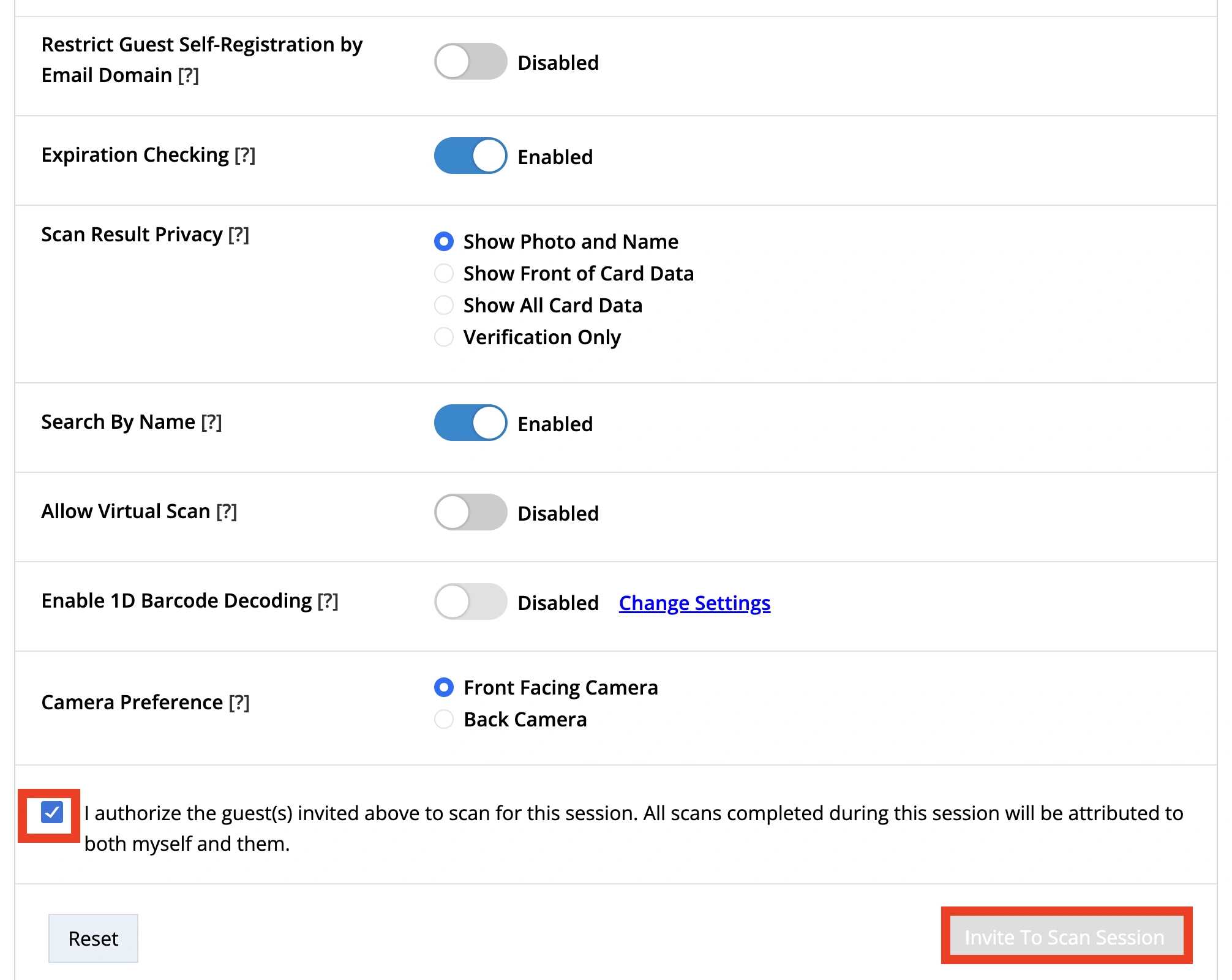
Step 6: Create the Session and Invite Scanners
- If you invited guests, check the authorization box to confirm you authorize them to scan for this session. All scans completed during the session are attributed to both you and the guest scanner. (Shown above)
- Click the ‘Invite To Scan Session’ button. Invited scanners receive an email invitation to join the session.
- Your new session now appears on the Scan Sessions page. From the ‘Actions’ menu, you can edit, deactivate, reactivate, duplicate, or terminate the session, view session details, and invite additional scanners.
You have created your scan session! If you have any questions or need help creating a scan session, feel free to contact our support team.