
Scan session locations let you record where ID cards are scanned, such as a building entrance, library, stadium, or classroom. Once created, locations can be assigned to scan sessions. Scanners then select their location when they start scanning, and every scan in the Scan Log shows the location where it took place. This article walks you through how to create, edit, and delete scan session locations in the ID123 ID Management System (IDMS).
Step 1: Navigate to ‘Scan Locations’
- Log in to your ID123 ID Management System (IDMS) account
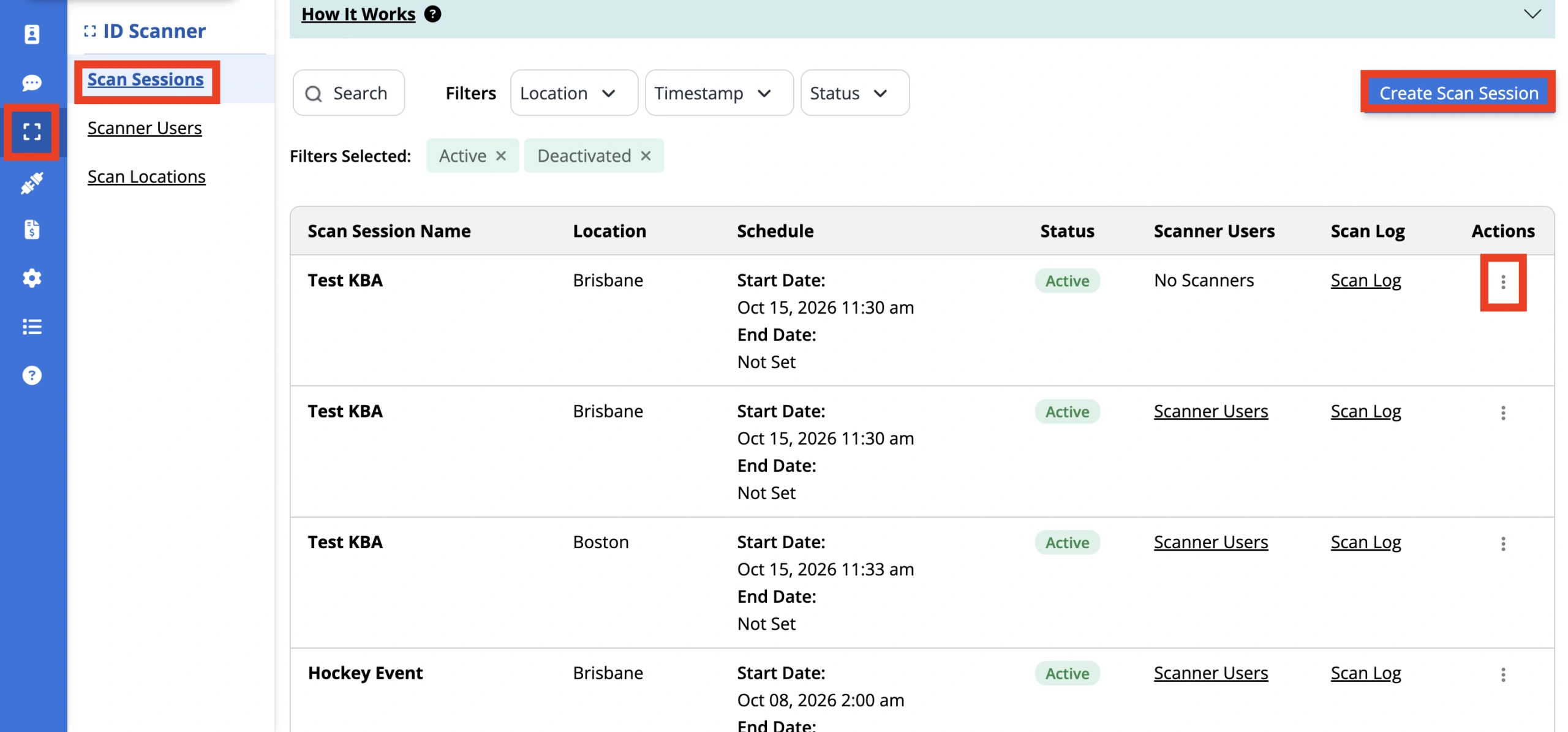
- From the left-hand navigation bar, click the ‘ID Scanner’ tab
- Select ‘Scan Locations’ or ‘Scan Session’ in the sub-menu
- The Scan Session Locations table lists each location with its Location Name, the number of Active Sessions using it, and available Actions. Use the search bar to find a specific location by name. The Scan Session menu also shows you scan locations when creating a scan session. Selecting ‘Location Settings’ will redirect you to the Scan Session page.
Step 2: Add a New Location
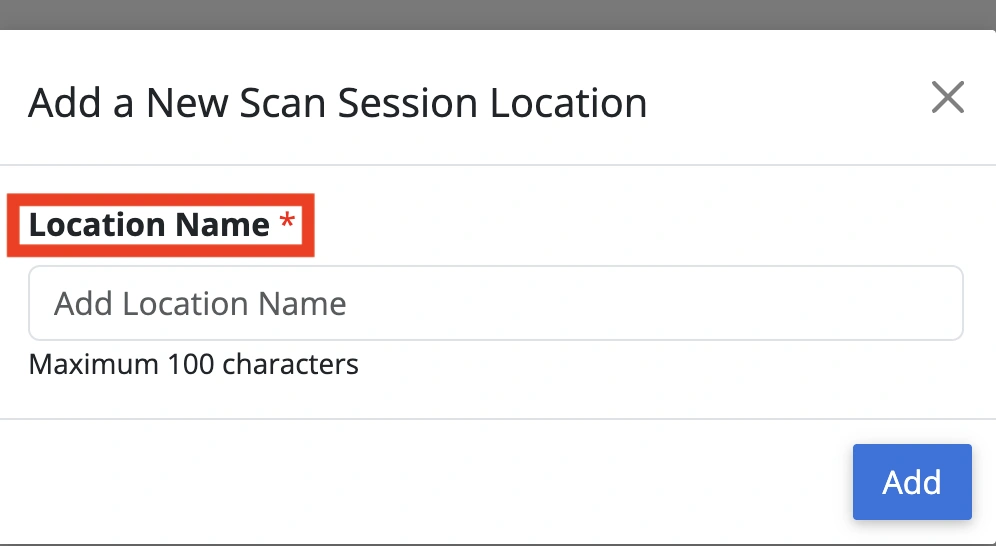
- Click the ‘Add New Location’ button
- In the ‘Add a New Scan Session Location’ window, enter a ‘Location Name’ (maximum 100 characters)
- Click ‘Add’ to save the location
The new location appears in the table and is available to select when you create or edit a scan session.
Step 3: Edit or Delete a Location
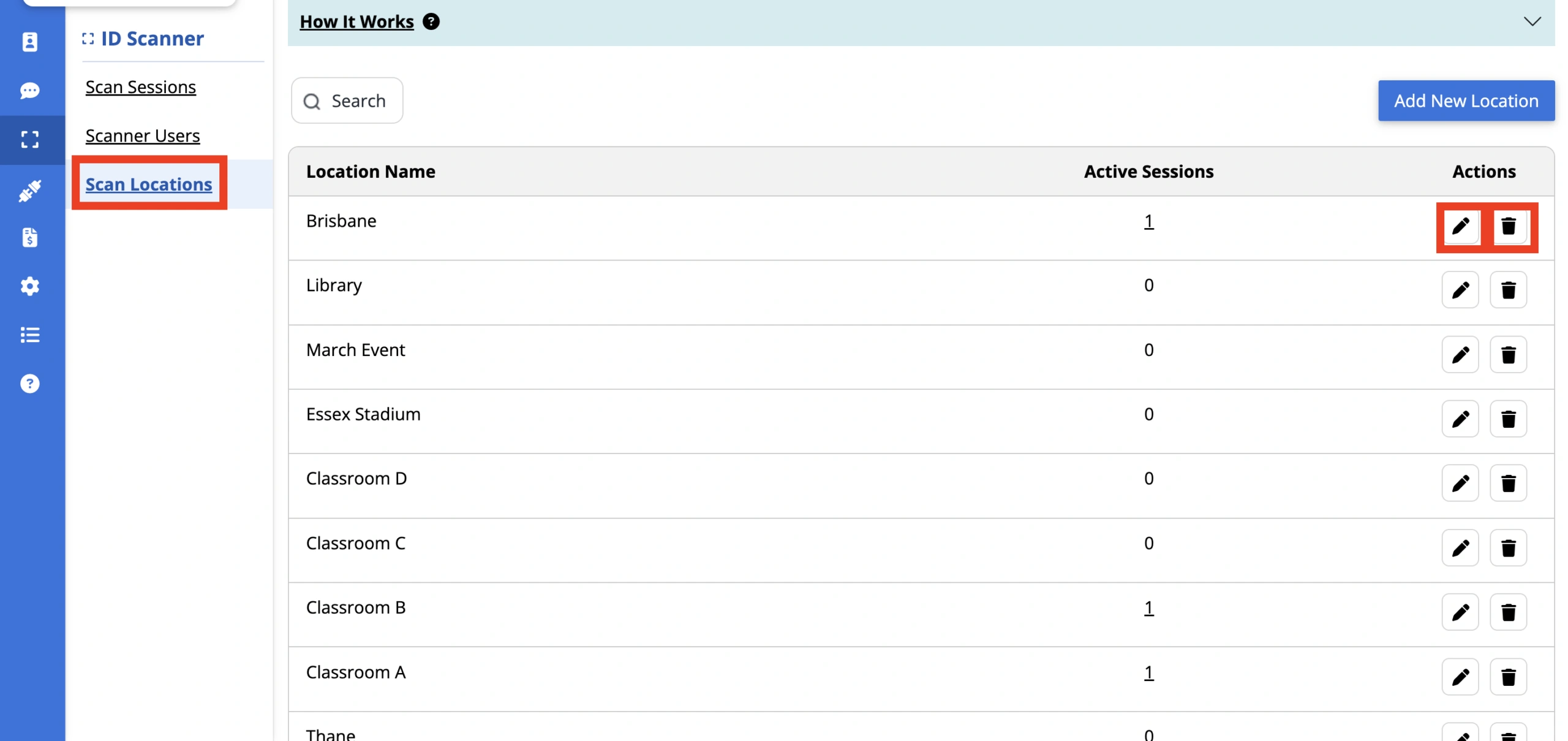
- In the ‘Actions’ column for the location, choose one of the following:
- Edit a Location: Update the location name.
- Delete a Location: Permanently delete the location. Before deleting, check the ‘Active Sessions’ column to see whether any sessions are still using the location.
Step 4: Assign Locations to a Scan Session
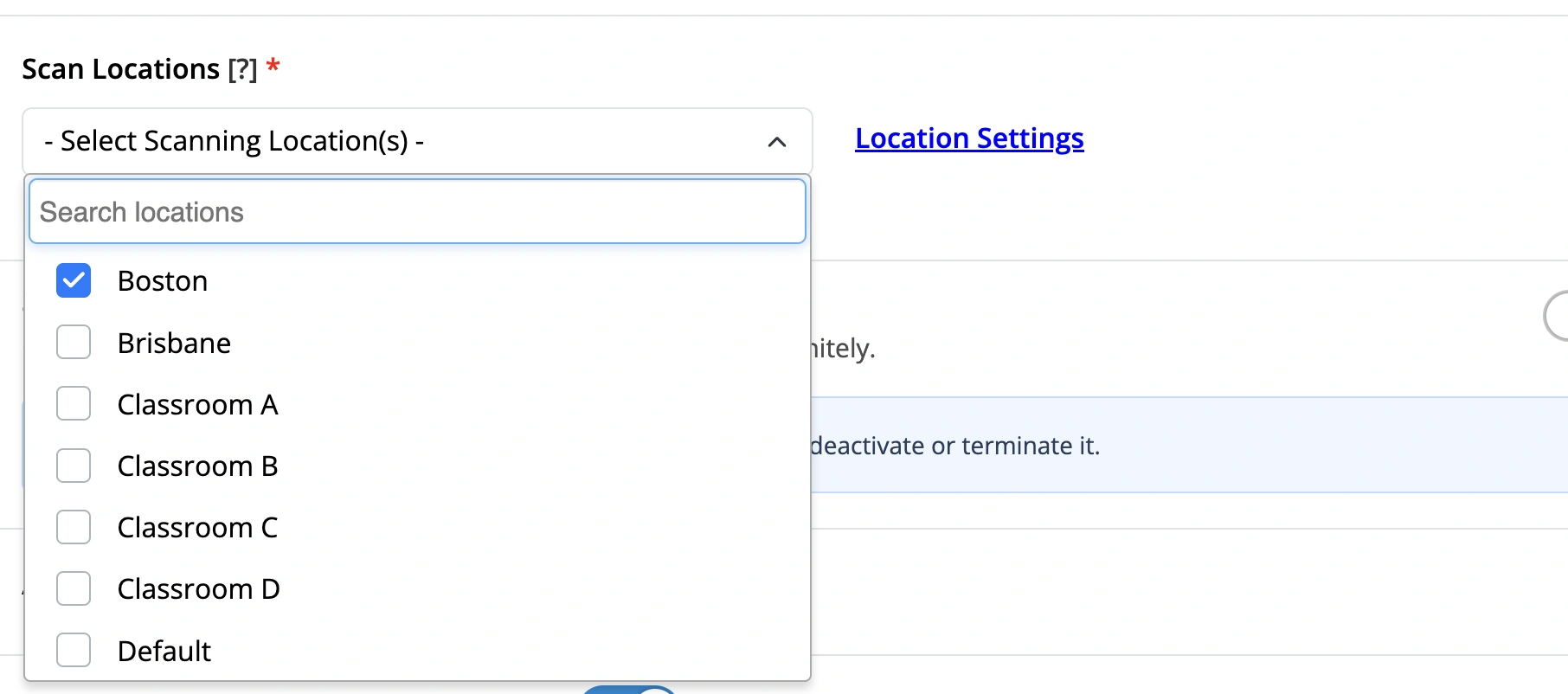
- When creating or editing a scan session, open the ‘Scan Locations’ drop-down and select the location(s) the scanner can choose from. You can select up to 10 locations per session
- When scanners start the session, they select their current location from this list before scanning
- If no custom locations have been created, your institution name is used as the default scan session location
Your scan locations are ready to use! If you have any questions or need help managing scan session locations, feel free to contact our support team.