
The Scan Log in the ID123 ID Management System (IDMS) records every ID card scanned during your scan sessions. Administrators can use it to monitor scan activity, look up a specific cardholder or session, and review the outcome of each scan. This article walks you through how to open the Scan Log, find the scans you are looking for, and view the details of an individual scan.
Step 1: Open the Scan Log
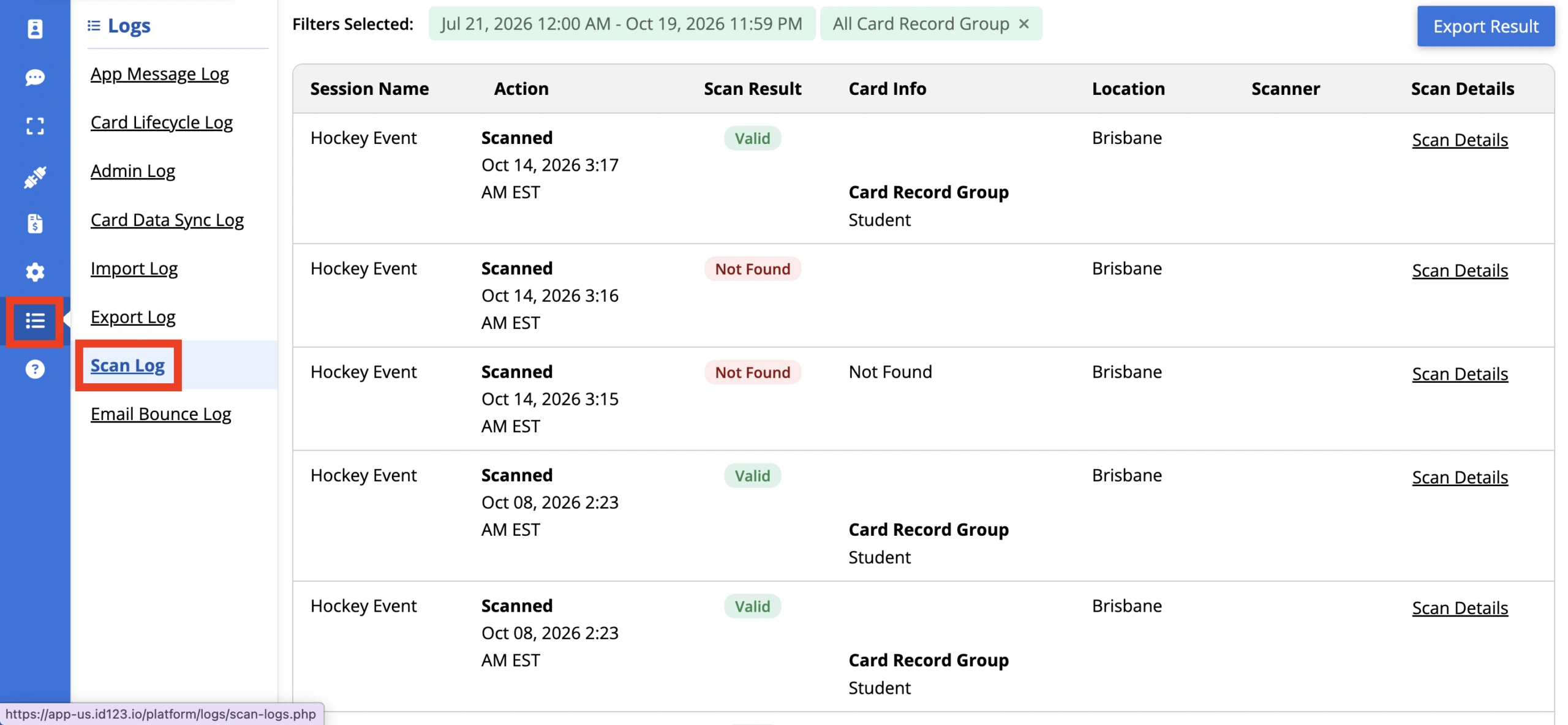
- Log in to your ID123 ID Management System (IDMS) account
- From the left-hand navigation bar, click the ‘Logs’ tab
- Select ‘Scan Log’ in the sub-menu
Step 2: Search and Filter Scans
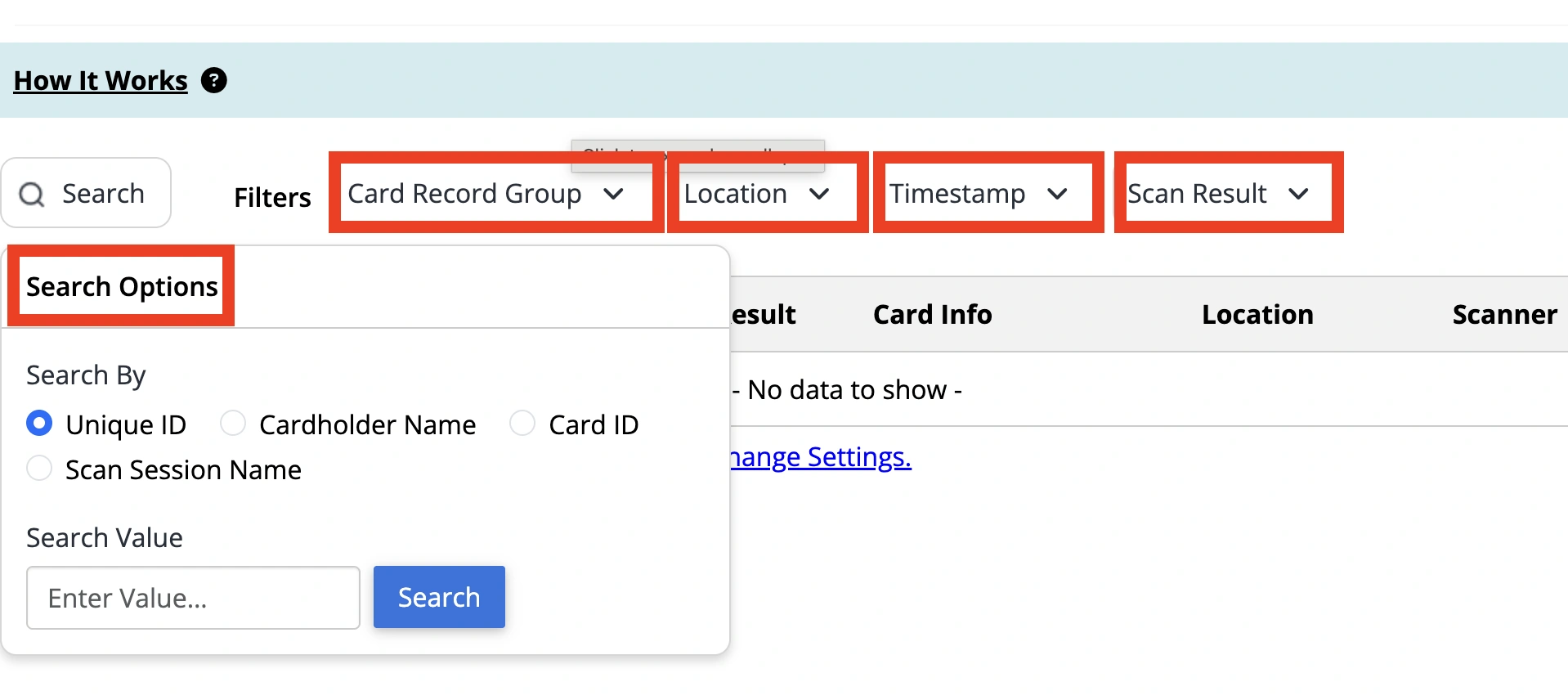
- Search: Click ‘Search’, choose what to search by (‘Unique ID’, ‘Cardholder Name’, ‘Card ID’, or ‘Scan Session Name’), enter a search value, and click ‘Search’
- Use the following filters to narrow the results, then click ‘Apply’:
- Card Record Group: Show scans for one or more card record groups (card templates)
- Location: Show scans from specific scan session locations
- Timestamp: Show scans from the ‘Past 7 Days’, the ‘Past 30 Days’, or a ‘Custom Range’ of dates and times
- Scan Result: Show scans with a specific outcome: ‘Valid’, ‘Expired’, ‘Invalid’, ‘Duplicate’, or ‘Not Found’
- Click ‘Clear All Filters’ to reset your search
Step 3: Review the Scan Log
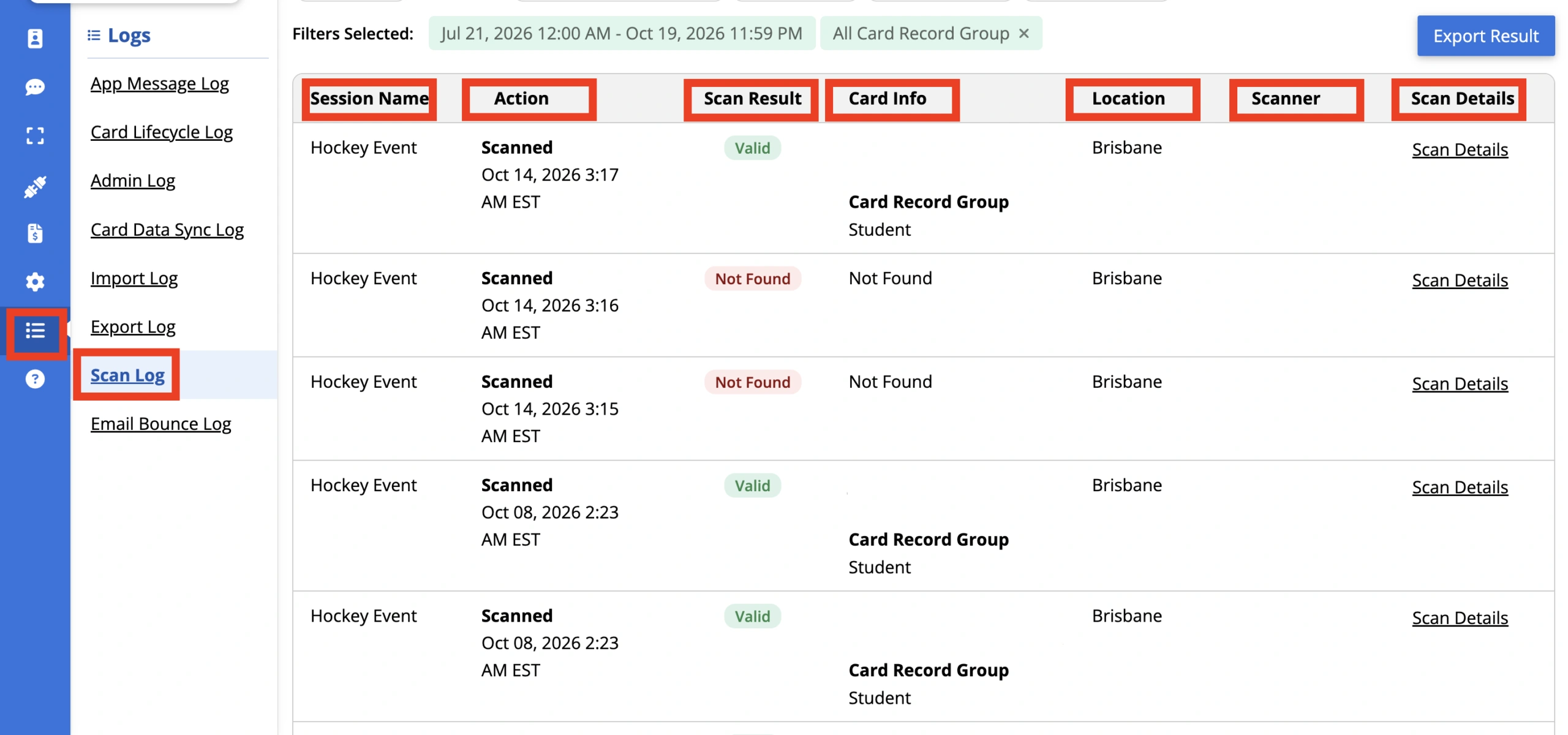
- Each scan is listed with the following information:
- Session Name: The scan session the scan was made in
- Action: The action taken and the date and time of the scan
- Scan Result: The outcome of the scan, such as Valid, Expired, Invalid, Duplicate, or Not Found
- Card Info: The cardholder’s name, email address, and card record group
- Location: Where the scan took place
- Scanner: The name of the scanner user who performed the scan
- Scan Details: A link to more information about the scan
Step 4: View the Details of a Scan
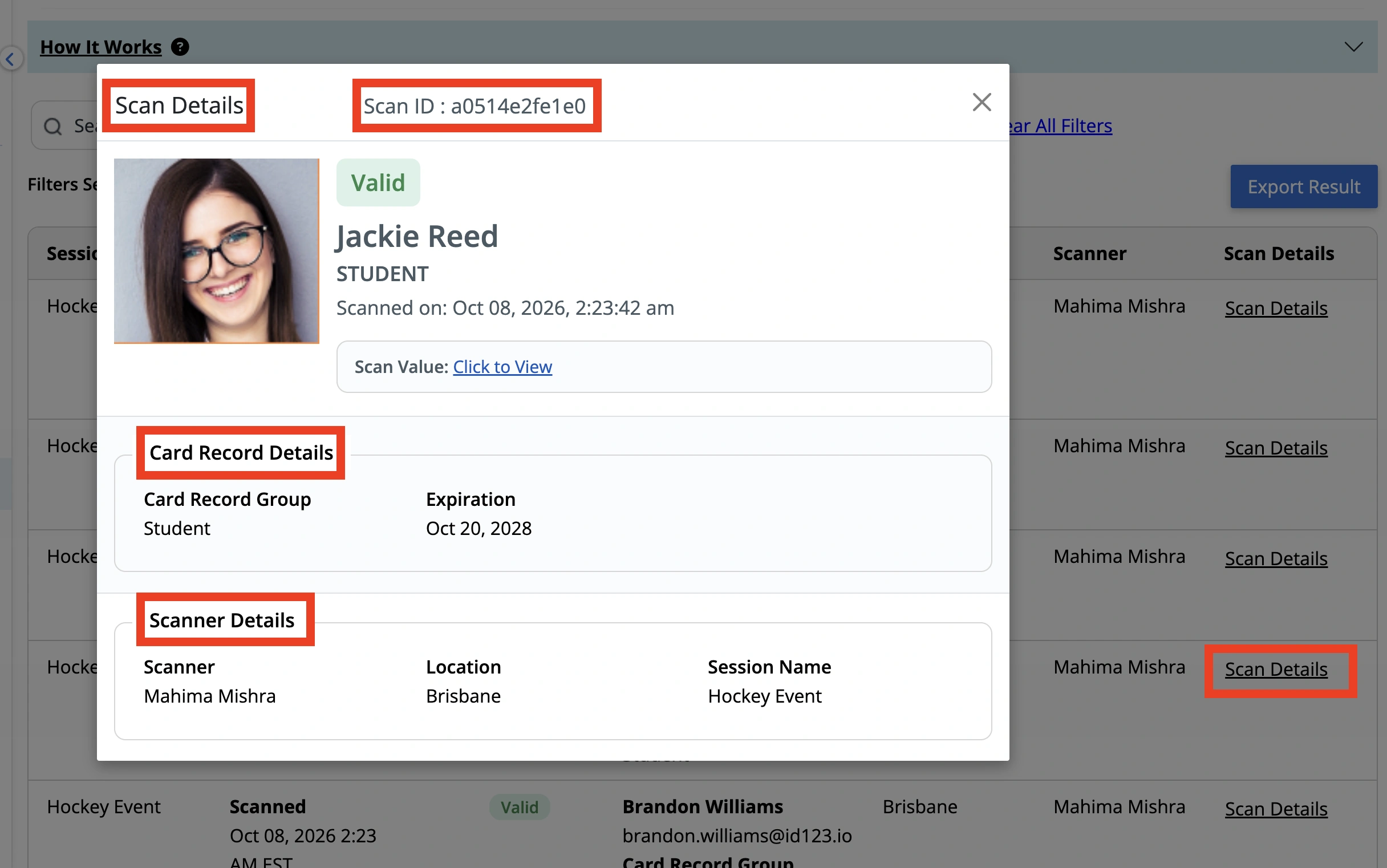
- Click ‘Scan Details’ in a row to open the Scan Details window, which shows:
-
- The Scan ID, scan result, cardholder name, and the date and time the card was scanned
- The cardholder information displayed when scanned (based on the Scan Result Privacy setting)
- The scanner user, location, and scan session name
Note: Scan logs are kept for your account’s data retention period (for example, 365 days). An administrator can adjust this by clicking ‘Change Settings’ at the bottom of the Scan Log page.
You can now review your scan history! If you have any questions or need help using the Scan Log, feel free to contact our support team.